


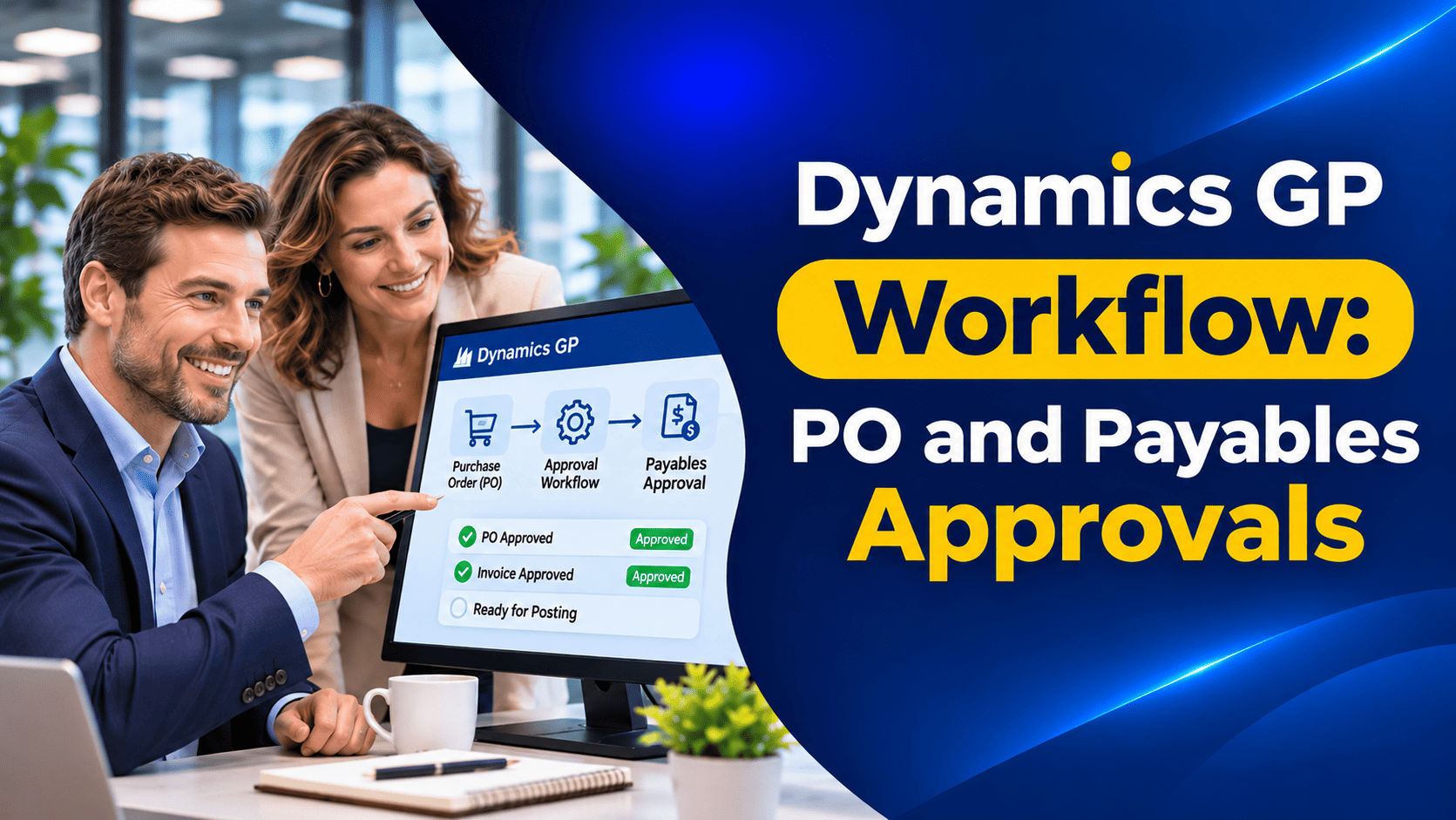
Approval controls are one of the first things auditors look at, and one of the first things finance teams want to tighten as a business grows. Who can raise a purchase order? Who approves a large vendor invoice? What happens when the approver is on leave?
If you use Microsoft Dynamics GP, you already have a tool built for this: Workflow. It lets you route documents and batches to the right people for approval, based on rules you define, without paper forms or email chains.
In this guide, we walk you through how to set up Workflow for purchase order and payables approvals, the key settings that make it work well, and the common issues we help clients resolve.
What Is Dynamics GP Workflow?
Workflow is GP’s built-in approval engine. A workflow defines who must approve a document, master record or batch, and under what conditions. For example, a purchase order under $5,000 might need approval from a department manager, while anything above that also needs the finance director.
Workflow has grown steadily over the GP releases. Since GP 2013 R2, it no longer depends on SharePoint, which made it much easier to set up. Over later releases, Microsoft added more workflow types, document attachments, Word templates for batch approvals and better email notifications.
Workflow Types for Purchasing and Payables
It is helpful to recognize which workflow types are relevant to purchasing and payables:
| Workflow type | What it approves | Where users submit |
|---|---|---|
| Purchase Requisition Approval | Requisitions before they become purchase orders | Purchase Requisition Entry |
| Purchase Order Approval | Purchase orders before they are printed or sent | Purchase Order Entry |
| Payables Transaction Approval | Individual vendor invoices and other payables documents | Payables Transaction Entry |
| Payables Batch Approval | Payables batches before posting | Payables batch windows |
| Vendor Approval | New or changed vendor records | Vendor Maintenance |
Vendor Approval is worth mentioning because it protects against one of the most common fraud risks: changes to vendor bank details. Requiring approval for new vendors and vendor changes adds a strong layer of control.
Before You Start
Good preparation makes Workflow far easier to set up and maintain:
- Document your approval policy. Write down your approval limits, the hierarchy of approvers and how delegation should work. This should come from finance and management, not from IT.
- Confirm your users. Approvers need GP user accounts and valid email addresses.
- Check email settings. Workflow relies on email for notifications. From GP 18.3, GP supports modern authentication for Microsoft 365 email.
- Turn off older PO approvals. If you previously used the approval feature in Purchase Order Enhancements, clear the Activate Approvals option in PO Enhancements Setup before using the Purchase Order Approval workflow.
- Plan escalation. If you want overdue steps to escalate automatically, make sure SQL Server Agent is running and set to start automatically.
Step-by-Step: Setting Up Workflow
Step 1: Configure Workflow Setup
Open Microsoft Dynamics GP > Tools > Setup > System > Workflow Setup. Here you enter the email settings that Workflow uses to send notifications, and, if you want approvers to act directly from email, the web service settings that make email approval possible.
Step 2: Set up the Workflow Calendar
Open Microsoft Dynamics GP > Tools > Setup > Company > Workflow > Workflow Calendar. Define your working days and holidays. Workflow uses this calendar when calculating time limits and escalations, so weekends and holidays do not trigger unnecessary escalations.
Step 3: Create the workflow
Open Workflow Maintenance from Administration > Setup > Company > Workflow. Choose the series, such as Purchasing, then select the workflow type, such as Purchase Order Approval, and choose New Workflow. Give it a clear name and description.
Step 4: Define general settings
At the workflow level, you can set:
- Who can submit documents.
- Email notifications, such as telling the originator when a document is approved or rejected.
- Alternate final approver, who can step in when a workflow cannot find a valid approver.
- Whether the originator can approve their own documents, which should usually be switched off for good segregation of duties.
Step 5: Add steps and conditions
This is where your approval policy comes to life. For each step, you set:
- The condition, such as document amount greater than $5,000, vendor class is Capital or buyer is a specific user. Conditions can be combined.
- The approvers, either specific users or the submitter’s manager.
- The completion policy, such as requiring one approver or all approvers to approve.
- The time limit, and what happens when it expires, such as escalating to another approver.
Steps can be arranged in sequence to build multi-level approvals. For example:
- Department manager approves all purchase orders.
- Finance director approves purchase orders over $10,000.
- Chief financial officer approves purchase orders over $50,000.
Step 6: Activate the workflow
Once you are happy with the setup, mark the workflow as Active and save. Only one workflow of each type can be active at a time.
Step 7: Customize email messages
Use Email Message Setup to adjust the notification templates, so approvers see the information they need, such as vendor, amount and description, without opening GP.
How Users Work With Workflow Day to Day
Once Workflow is active:
- Submitters enter a purchase order or payables document as normal, then click Submit on the Workflow action pane.
- Approvers receive an email and can approve or reject from the email itself (where email approval is set up), from the Workflow list on their GP home page, or from the document window.
- Comments can be added at each step, giving a clear record of why a document was approved or rejected.
- History for each document shows every action, who took it and when, which is valuable for auditors.
- For payables batch approvals, Word templates can send approvers a summary of the batch, so they can review the details before approving.
Delegation and Escalation
Two features make Workflow practical in real organizations:
- Delegation lets an approver hand their approval tasks to someone else for a period, such as during annual leave. Delegations can be set for specific workflow types and dates.
- Escalation moves a step to another approver when the time limit passes without action. This prevents documents getting stuck in someone’s inbox.
We want to emphasize that both should be part of your written policy, not left to individuals to decide.
Common Issues and How to Avoid Them
- Emails not sending. Check Workflow Setup and your email server settings. Changes to Microsoft 365 authentication are a common cause.
- Documents stuck as pending. This usually means no valid approver was found, or the approver is inactive. An alternate final approver helps here.
- Escalations not happening. Confirm SQL Server Agent is running and the Workflow Calendar is set up.
- Too many steps. Overly complex workflows slow the business down. Keep the number of steps as small as your controls allow.
- Workflow left unchanged as people move on. Review approvers whenever someone joins, leaves or changes role.
Frequently Asked Questions
Which Dynamics GP versions support Workflow for purchase orders and payables?
Purchase Order and Purchase Requisition Approval have been available since GP 2013 R2. Payables Batch and Vendor Approval were added in GP 2015, and Payables Transaction Approval in GP 2015 R2.
Can approvers approve purchase orders from email?
Yes, when email approval is set up in Workflow Setup. Approvers can also approve from their GP home page or the document window.
Can I have different approvers for different departments?
Yes. Use conditions on each step, such as department, buyer or vendor class, to route documents to the right approvers.
Does Workflow replace the approval feature in Purchase Order Enhancements?
Yes. To use the Purchase Order Approval workflow, you must turn off the older approval option in PO Enhancements Setup.
Looking Ahead: Approvals in Business Central
With GP support ending on December 31, 2029, many organizations are planning their move to Dynamics 365 Business Central. Business Central includes built-in approval workflows for purchase documents, vendors, journals and more, with approval user setup, limits and substitutes. It also connects with Power Automate, so approvals can be handled in Microsoft Teams or Outlook.
Workflow rules do not migrate automatically, so mapping your GP approval policies is an important part of any Dynamics GP to Business Central migration. You can explore more on our Business Central features page.
How Nevas Technologies Can Help
At Nevas Technologies, we have more than two decades of experience with Microsoft Dynamics. Our Dynamics GP support team can design and configure Workflow for your purchasing and payables processes, troubleshoot existing workflows and help you strengthen approval controls before your next audit.
Our Dynamics GP training helps submitters and approvers use Workflow confidently, and our Business Central consultants can show you how approvals work in Business Central when you are ready to move.
Need help with GP approvals? Contact our team, or schedule a demo to see approval workflows in Business Central.