

For most finance teams, bank reconciliation is a monthly routine. When everything matches, it takes a few minutes. When it does not, it can take days. If you use Microsoft Dynamics GP, you have probably seen both sides of that experience.
In this guide, we walk you through how bank reconciliation works in GP, the steps to reconcile a bank statement, and, most importantly, what to do when your checkbook is out of balance, whether against the bank statement or against the General Ledger.
How Bank Reconciliation Works in Dynamics GP
It helps to recognize that GP actually involves three balances that should agree:
- The bank statement balance, which comes from your bank.
- The checkbook balance in GP’s Bank Reconciliation module. Each checkbook is linked to a cash account and tracks checks, deposits, transfers and adjustments.
- The General Ledger cash account balance, which is what appears on your financial statements.
The checkbook acts as a subledger of the General Ledger. Transactions from Payables, Receivables, Payroll and Bank Reconciliation update the checkbook and, when posted, the cash account.
This means there are really two reconciliations to complete each month:
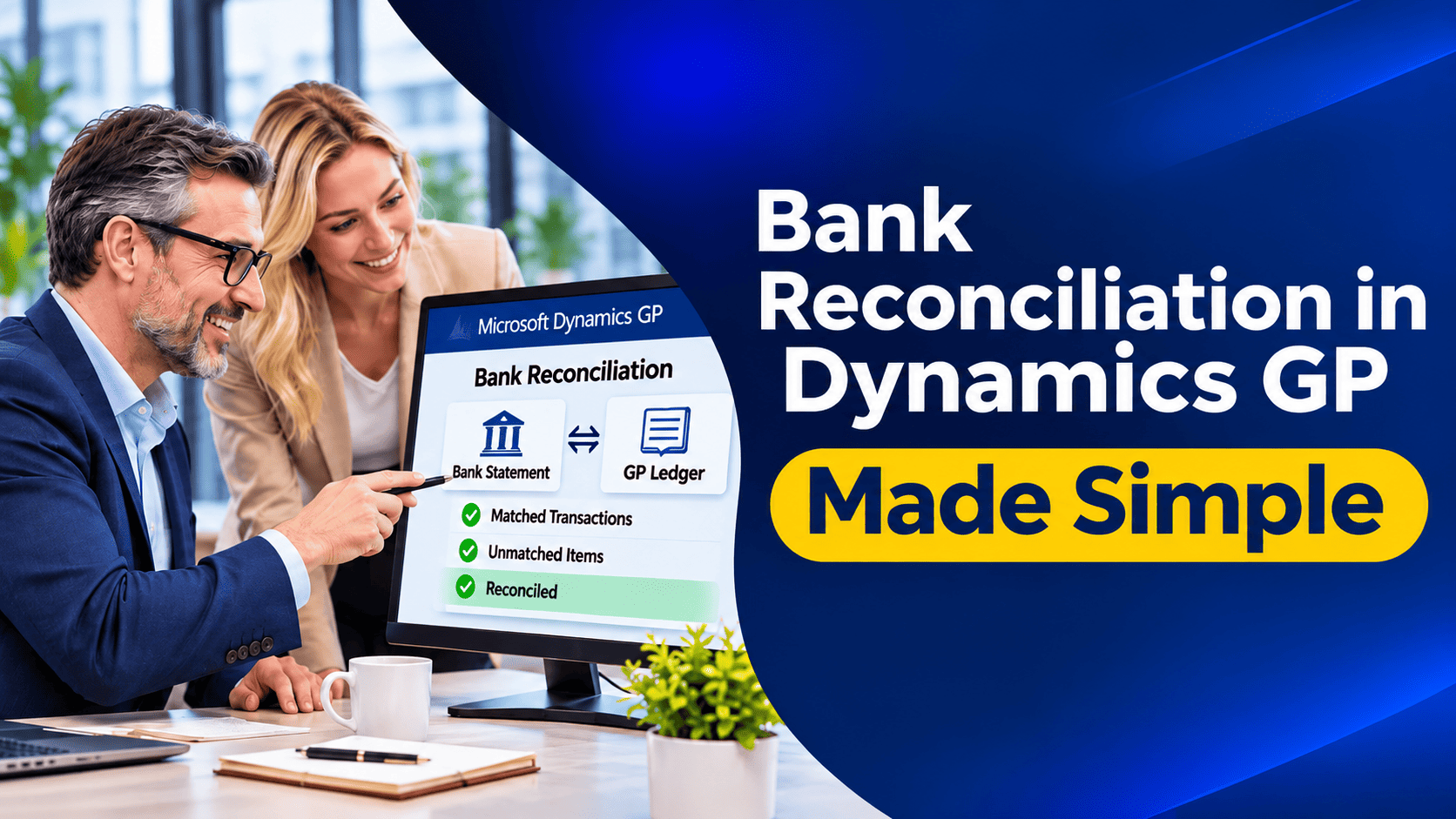
- Bank to checkbook, using GP’s Reconcile Bank Statements process.
- Checkbook to General Ledger, confirming that the checkbook balance agrees with the cash account.
Many teams do the first and forget the second. That is often how an out-of-balance checkbook goes unnoticed for months.
Before You Start
A little preparation makes the reconciliation far smoother:
- Post all batches that affect cash, including Payables checks, Receivables cash receipts, Payroll and General Ledger entries.
- Make your deposits. Cash receipts entered in Receivables increase the GL cash account when posted, but they only update the checkbook once you record the deposit in Bank Deposit Entry. Any receipts that have not been deposited will not appear as deposits in the reconciliation.
- Have your bank statement ready, including the ending balance, ending date and details of any bank charges or interest.
Step-by-Step: Reconciling a Bank Statement in GP
Step 1: Open Reconcile Bank Statements
Go to Transactions > Financial > Reconcile Bank Statements and select the Checkbook ID.
Step 2: Enter the statement details
- Bank Statement Ending Balance: the closing balance from your bank statement.
- Bank Statement Ending Date: the date of that balance. This also becomes the default cleared date.
- Cutoff Date: usually the same as the statement ending date. Only unreconciled transactions on or before this date appear, and GP calculates the checkbook balance as of this date.
Step 3: Mark cleared transactions
Click Transactions to open the Select Bank Transactions window. Mark each check, deposit and adjustment that appears on your bank statement. As you mark items, the cleared totals update at the bottom of the window.
Step 4: Enter adjustments
If the bank statement shows items that are not yet in GP, such as service charges, interest income or other fees, click Adjustments. In the Reconcile Bank Adjustments window, choose the adjustment type, date, offset account and amount. These adjustments update the checkbook and, when posted, the General Ledger.
Step 5: Check the difference and reconcile
When the Difference field shows zero, click Reconcile. GP marks the cleared transactions as reconciled and updates the checkbook’s last reconciled balance and date.
Step 6: Print and keep the reports
Print or save the Reconciliation Journal, Cleared Transactions Journal, Bank Adjustments Journal and Outstanding Transactions Report. These provide a clear audit trail and help you start next month’s reconciliation.
When the Bank Reconciliation Does Not Balance
If the Difference field will not reach zero, the problem usually falls into one of these categories:
- A missed or incorrectly marked item: Compare the cleared totals with the bank statement totals. Look for a transaction marked twice, or one that should have been marked but was not.
- Wrong statement figures: Check the ending balance and dates you entered. A simple typing error is more common than people admit.
- Wrong cutoff date: If the cutoff date is earlier or later than the statement period, transactions appear or disappear unexpectedly.
- Transactions with unusual dates: GP calculates the checkbook balance as of the cutoff date by working backwards from the current balance. Transactions dated far into the future, or posted after the cutoff but dated before it, can make the adjusted book balance look wrong.
- Voided checks: A check voided before it was reconciled no longer appears in the window. Whether a voided check appears depends on the void date and your cutoff date.
- Last month’s reconciliation was wrong: If an item was marked incorrectly in a previous month, the difference carries forward. Review the previous Outstanding Transactions Report.
- Missing bank charges or interest: These should be entered as adjustments.
A practical way to find a difference is to divide it into pieces. If the difference equals a single transaction amount, look for that transaction. If it is double a transaction amount, look for something entered with the wrong sign. If it divides evenly by nine, check for transposed digits.
When the Checkbook Does Not Match the General Ledger
This is the out-of-balance situation that causes the most confusion. The bank and the checkbook agree, but the checkbook balance does not match the GL cash account, or the other way round.
Microsoft lists several common causes, including:
- Journal entries posted directly to the cash account in General Ledger, without going through Bank Reconciliation. This is the most common cause by far.
- Unposted General Ledger batches. A deposit may be recorded in Bank Reconciliation, but the related GL batch is still waiting to post.
- The same cash account used for more than one checkbook.
- Posting interruptions, where one part of a transaction posted and another did not, or where a module was restored without Bank Reconciliation being restored too.
- Posting setup that does not send Bank Reconciliation transactions to the General Ledger.
- A cash account overridden on a transaction, or cash coming from a customer, vendor or employee record rather than from a checkbook.
- Timing differences, where a transaction posted to the General Ledger with a different date.
- An incorrect starting balance when Bank Reconciliation was first set up.
How to find the difference
Since GP 2013, the Reconcile to GL routine includes Bank Reconciliation. It compares the detail in the checkbook with the detail in the GL cash account for a date range you choose, and groups transactions into matched, unmatched and potentially matched items. You can export the results to Excel for analyzing and summarizing the differences.
A good approach is:
- Choose a start date when you know the checkbook and cash account last agreed.
- Run Reconcile to GL for that checkbook and date range.
- Review the unmatched items first. These usually point straight to direct GL entries or missing transactions.
- Decide on the correct fix for each item, such as entering a missing Bank Reconciliation transaction, reversing an incorrect GL entry, or posting a stuck batch.
- Run the routine again to confirm the balances agree.
We want to emphasize: always take a backup before making corrections, and avoid fixing differences directly in SQL tables unless you are working with an experienced Dynamics GP consultant.
How to Prevent an Out-of-Balance Checkbook
- Stop direct entries to cash accounts. In the account setup for each cash account, turn off Allow Account Entry, so users cannot post journal entries directly to it.
- Use one cash account per checkbook.
- Use Bank Reconciliation transactions (Bank Transaction Entry and Bank Deposit Entry) for any cash movement that does not come from another module.
- Post batches promptly, and check for stuck or interrupted batches.
- Reconcile the checkbook to the General Ledger every month, not only at year-end.
- Train your team so everyone understands how cash flows through GP. Our Dynamics GP training covers bank reconciliation and month-end routines in detail.
Frequently Asked Questions
Why doesn’t my checkbook balance match the GL cash account in Dynamics GP?
The most common reason is a journal entry posted directly to the cash account in General Ledger. Other causes include unposted batches, posting interruptions, timing differences and more than one checkbook sharing a cash account.
Why are my cash receipts not showing in the bank reconciliation?
Receipts entered in Receivables only reach the checkbook when you record them as a deposit in Bank Deposit Entry. Make the deposit, and the receipts will appear.
Can I undo a bank reconciliation in GP?
There is no simple undo button. Correcting a completed reconciliation usually requires careful adjustments or help from your GP partner, so double-check before clicking Reconcile.
What is the Reconcile to GL routine?
It is a GP tool, available since GP 2013, that compares subledger detail, including checkbooks, with the General Ledger and highlights matched and unmatched transactions.
How Bank Reconciliation Works in Business Central
With Dynamics GP support ending on December 31, 2029, many organizations are planning their move to Dynamics 365 Business Central. Business Central imports bank statements electronically, suggests matches automatically, and in the online version, Copilot can help match transactions. During a Dynamics GP to Business Central migration, Microsoft’s tool brings across unreconciled bank transactions, so you can continue reconciling in the new system.
How Nevas Technologies Can Help
At Nevas Technologies, we have more than two decades of experience with Microsoft Dynamics. Our Dynamics GP support team can help you find and fix out-of-balance checkbooks, clean up old reconciling items and put controls in place so the problem does not come back.
Struggling with a checkbook that will not balance? Contact our team, or schedule a demo to see bank reconciliation in Business Central.