

For decades, Microsoft Dynamics SL (many people still call it Solomon) has been the system of choice for project-based businesses. Consulting firms, engineering practices, construction companies and government contractors chose it because it handled project accounting, time and expense, billing and complex financials better than most general accounting products.
That strength has not gone away. What has changed is the ground underneath it.
Dynamics SL 2018 is the final release. Its mainstream support ended on January 9, 2024, and extended support ends on July 11, 2028. Since mainstream support ended, Microsoft has provided security fixes only, with no year-end tax updates after 2024. SL also stopped being sold to new customers in September 2023. You can read the full picture in our guide to Dynamics SL end of life.
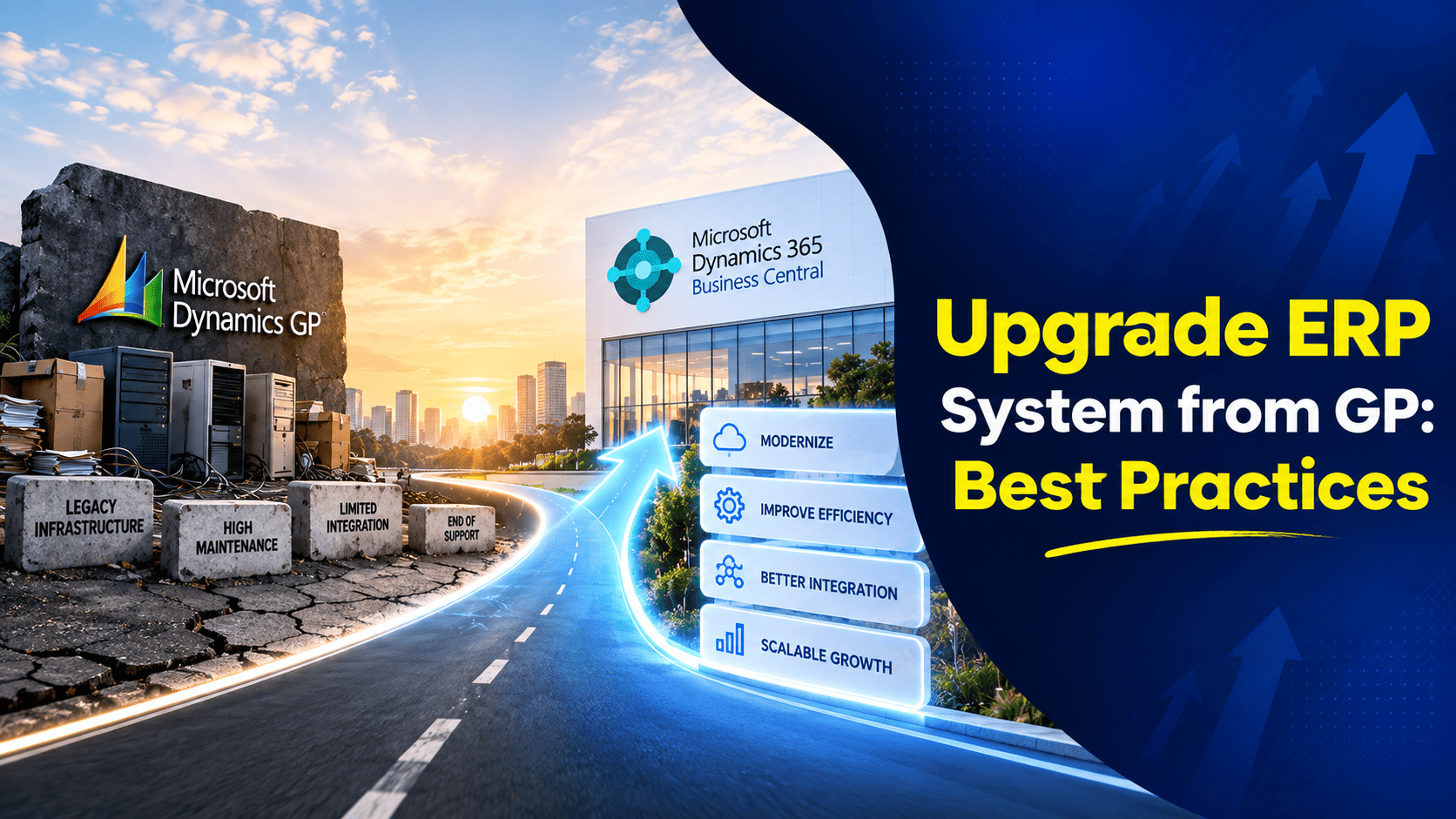
With less than two years to go, the question for most SL users is no longer whether to move, but how. Microsoft’s recommended path is Dynamics 365 Business Central. In this guide, we’ll explain what you gain, what the migration involves, how your data moves and where SL users most often need extra help.
What Are the Benefits of Migrating from Dynamics SL to Dynamics 365?
SL was designed at a time when business software lived on a server in the office. Everything else, such as remote access, reporting tools and links to other systems, was added around it later. Business Central starts from the other direction: it is built for the cloud and for connection.
Here is what that means in day-to-day work for a project-based business:
- One place for projects and finance. Project budgets, time sheets, purchasing, billing and the general ledger all sit in the same system. Project managers and accountants look at the same numbers instead of reconciling separate reports.
- Access from anywhere. SL usually needs Remote Desktop, a VPN or extra hosting to work outside the office. Business Central runs in a browser or mobile app, so a project manager on a client site can check budget against actual, approve a purchase or enter time from a phone.
- Clearer, faster reporting. Business Central comes with role-based dashboards and connects directly to Power BI. You can see project profitability, work in progress and utilisation at a glance, then click through to the transactions behind each figure.
- Works with the tools your team already uses. Outlook, Excel and Teams are built in. Quotes and invoices go out from Business Central by email, and people can share live records in Teams chats.
- No more upgrade projects or servers. Microsoft updates Business Central twice a year and manages hosting, backups and security. Your IT team stops maintaining ageing SQL servers and Remote Desktop setups.
- AI support built in. Copilot features help with tasks such as bank reconciliation, drafting item descriptions and summarising records, and Microsoft keeps adding more with each release.
For a side-by-side view of the two products, see our comparison of Microsoft Dynamics SL vs Dynamics 365 Business Central.
What Does an SL to D365 Migration Typically Entail?
It helps to think of an SL migration as a modernisation project rather than a simple data transfer. Moving the database is only one part of it.
Most SL businesses do not run SL alone. It is usually surrounded by other tools: a separate CRM, a payroll service, a time-entry app, spreadsheets for resource planning, and reporting packs built in Excel or FRx. So the migration normally involves some of the following:
- Moving core financial and project data from SL into Business Central
- Replacing SL-specific modules and customizations with Business Central features, extensions or specialist apps
- Rebuilding reports, often in Power BI rather than as fixed financial statements
- Reconnecting or replacing integrations with payroll, CRM, banking and other systems
- Retiring spreadsheets and side systems that Business Central can now handle
- Training staff on new ways of working, particularly in finance and project management
In some cases, the business is also consolidating several on-premises systems at the same time. In others, part of the company already uses Business Central and SL functions are being folded into it. Either way, a clear plan at the start saves a lot of rework later.
What to Do Before Migrating Dynamics SL to Dynamics 365 Business Central
The work you do before migration has the biggest effect on the result. For project-based firms, getting this right is what turns a migration into better forecasting, tighter cost control and more accurate billing.
Here are the steps we recommend:
- Take stock of everything you run. List SL modules, customizations, screens you have modified, reports, add-ons and integrations. Include things that sync data into SL and anything that has been switched off but not removed. You will often find customizations nobody uses any more.
- Talk to every team. Ask finance, project managers, operations and leadership what works well today, what causes daily frustration and what they currently do outside the system. These conversations often reveal the real priorities.
- Look for improvements, not just replacements. Review billing delays, project overruns, month-end close time and manual reconciliations. Decide which processes should be improved or redesigned rather than copied across as they are.
- Match needs to solutions. For each requirement, check what Business Central does as standard, what needs a Microsoft AppSource app and what needs a small extension. This is especially important for advanced project accounting, where Business Central’s standard project features are simpler than SL’s. Specialist project apps built on Business Central can close that gap without moving you to a much larger, more expensive ERP.
- Decide how much history you need. Agree early which data will move into Business Central, and which older records will be archived somewhere searchable.
If you already have a Dynamics GP environment or are comparing plans, our checklist of 10 questions to ask before you migrate applies equally well to SL.
Weigh Your Dynamics SL to D365 Migration Options
There are two main ways to move from SL to Business Central.
1. Upgrade (tool-based migration)
In this approach, Microsoft’s migration tools carry your SL data across into Business Central. You need to be on Dynamics SL 2018 first, so older versions must be upgraded before you start. The tools move core master data and open balances, but customizations and custom screens do not come across. Anything you have built in SL has to be rebuilt as a Business Central extension or replaced with an app.
This route suits businesses on SL 2018 with fairly standard setups and clean data.
2. Fresh implementation (reimplementation)
Here, Business Central is set up from the start to match how you want to work. You then load only the data you choose, usually master records, open balances and a set period of history, using import templates.
This takes a little more design effort at the beginning, but it gives you much more control. You avoid carrying across old data problems, unused fields and processes that were only there to work around SL’s limits. It also makes it easier to take full advantage of Business Central’s features from day one.
Which is better?
For most SL customers, especially those on older versions or with heavily customised systems, a fresh implementation gives the better long-term result. A tool-based upgrade can make sense for simpler SL 2018 environments where speed matters most. A good partner will look at your system before recommending either.
How Do You Migrate Data from SL to Dynamics 365?
Business Central includes a cloud migration tool for Dynamics SL. It is useful, but it is designed to move the core of your financial data, not everything in SL. Some fields arrive blank and some setup data, such as bank accounts and certain customer and vendor classes, has to be completed by hand.
The tool typically brings across:
- Chart of accounts master records
- Customers and open receivables
- Vendors and open payables
- Inventory items and quantities
- A limited amount of historical data
- Checkbook (bank) master data
For the rest, you have several options:
RapidStart configuration packages. RapidStart lets you map Excel templates to Business Central tables and import data in bulk. It is ideal for extra master data, opening journal entries, project records and setup data. Because packages can be reused, you can repeat the load for each test migration.
Archiving SL data in Azure. Many firms need to keep years of project history for audits, claims or contract disputes, but do not want it all inside the new ERP. Copying the SL database to Azure storage, such as Azure Data Lake, keeps it secure and searchable. Azure Data Factory can automate the transfer and feed the data into Power BI for historical reporting.
Replicating data through the cloud migration service. Business Central can replicate master records and open transactions from SL into your cloud tenant on a schedule. This lets you start using cloud reporting, Power BI and Power Automate while SL is still your main system.
Be careful with this approach, though. Replicated data only updates when the next scheduled or manual sync runs, so it is not real time. If people make decisions from it without realising it is a few hours or days old, mistakes can follow. Treat replication as a temporary bridge during the move, not a long-term setup.
If you are planning the timing and budget, it is also worth asking about Microsoft’s migration incentives. Programmes such as Bridge to the Cloud have offered discounted Business Central licences to SL and GP customers during the changeover. Terms change over time, so check what currently applies.
What Challenges Can You Expect During the SL to Dynamics 365 Migration?
Some challenges are common to every ERP move: finding the budget, freeing up staff time while the business keeps running, and getting everyone confident in a new system.
On top of those, SL users tend to meet three specific hurdles.
Adapting to New Capabilities
SL organises financial analysis mainly through account and subaccount structures. Business Central uses dimensions instead.
A dimension is a label you attach to a transaction, such as project, department, region, client, service line or project manager. Each one is a way of slicing your data. Looking at revenue by region is a simple one-dimension view. Looking at revenue by region, service line and project manager together is a three-dimension view, and Business Central handles that without changing your chart of accounts.
This is a powerful change, but it takes adjustment. Finance teams need to decide how SL subaccount segments map to dimensions, which dimensions are required on which transactions, and how financial reports should be rebuilt. People who have used SL for years may also find the new screens and processes unfamiliar at first.
Good Business Central training, using your own data and real scenarios, makes a big difference. So does a clear dimension design agreed before go-live.
Moving Customizations to the Cloud
SL customizations are often built with Customization Manager, custom screens or SQL-level changes. None of these carry across to Business Central.
Business Central does not let you change its core code. Instead, you extend it with AL extensions, built in Visual Studio Code and kept separate from Microsoft’s standard application. Tables and fields are defined in the extension rather than directly in SQL Server. Many field types and naming patterns will look familiar to SL developers, but the method is different.
This approach has a real benefit: because extensions sit outside the core product, Microsoft’s twice-yearly updates do not break them in the way that SL upgrades could break customizations. But it does mean each SL customization needs to be reviewed and then either:
- dropped, because Business Central already does the job,
- replaced with an AppSource app, or
- rebuilt as an extension.
For project accounting in particular, specialist Business Central apps can add the depth that SL users are used to, including project budgeting, revenue recognition and complex billing.
Migration Extends Beyond SL
SL was built mainly for project accounting and financials. Business Central covers the wider business: finance, purchasing, inventory, sales, service and projects, with links to CRM, HR and payroll.
That means your migration is rarely just about SL. You are either:
- bringing SL’s functions into a Business Central system that other parts of your business already use, or
- replacing a collection of separate tools, including SL, spreadsheets and point solutions, with one connected platform.
Both routes are an opportunity to simplify. Plan for the wider scope from the start, including integrations and data from other systems, so there are no surprises late in the project.
Final Thoughts
Dynamics SL has served project-based businesses well, but with extended support ending in July 2028 and no year-end updates since 2024, staying on it carries more risk every year.
Moving to Business Central does not mean giving up the project control you rely on. With the right design, the right apps and good training, it means better visibility, faster billing and reporting your whole team can use, wherever they are working.
For project-based firms, the aim is simple: every part of the system, from budgets and time sheets to resources and billing, should work together so projects stay profitable and clients stay satisfied.
Nevas Technologies has more than 20 years of Microsoft Dynamics experience, including support for Dynamics SL and migrations to Business Central. We can review your SL environment, recommend the right migration approach and support your team well after go-live.
Planning your move from Dynamics SL? Contact Nevas Technologies for a free consultation.