


Of all the decisions you make when moving from Microsoft Dynamics GP to Dynamics 365 Business Central, few have a longer-lasting effect than how you set up your Chart of Accounts (COA) . It shapes every report, every budget and every analysis your finance team will produce for years to come.
The biggest change for Dynamics GP users is this: Business Central does not use segmented account numbers. The department, division or location codes that sit inside a GP account string become dimensions instead. Understanding that shift, and using the migration as a chance to redesign rather than copy, is one of the most valuable things you can do in your project.
How the Chart of Accounts (COA) Works in Dynamics GP?
In Dynamics GP, an account number is usually made up of several segments. A typical example might look like this:
100-4000-20
- 100 is the company or division.
- 4000 is the main account, such as Sales.
- 20 is the department.
Every combination of segments is a separate account in GP. So if you have one Sales account, five divisions and ten departments, you can end up with dozens of Sales accounts. Over the years, many Dynamics GP organizations end up with thousands of accounts, most of them variations of the same few main accounts.
This approach worked well for reporting by segment, especially with Management Reporter, but it has clear downsides:
- The chart of accounts (COA) becomes very large and hard to maintain.
- Adding a new department means creating many new accounts.
- Mistakes in account selection are easy to make and hard to spot.
- Analysis is limited to whatever segments were built into the account string.
How Business Central Handles It: Accounts Plus Dimensions
Dynamics 365 Business Central separates the what from the where.
- G/L accounts describe what the transaction is, such as Sales, Rent or Salaries. The chart of accounts usually contains only main accounts.
- Dimensions describe where or for whom the transaction applies, such as department, location, project, region or product line.
Using the earlier example, instead of account 100-4000-20, Business Central would record account 4000 Sales with a Division dimension of 100 and a Department dimension of 20.
This gives you a much smaller, cleaner chart of accounts, while still allowing you to report by every division and department. It also means you can add new analysis categories in future without restructuring your accounts.
Global and shortcut dimensions
It is important to recognize that Business Central treats dimensions at two levels:
- Global dimensions (two): these are stored directly on every ledger entry, so they are the fastest to filter and report on throughout the system. Most organizations choose their two most important analysis categories here, such as department and location.
- Shortcut dimensions (up to six more): these can be entered directly on journal and document lines for convenience, giving you up to eight dimensions that users can see and fill in easily.
You can define more dimensions beyond these, but the global and shortcut dimensions are the ones users interact with most.
What the Migration Tool Does With Your Segments
Microsoft’s GP-to-Business Central cloud migration tool handles this conversion for you:
- The main account segment in GP becomes the account number in Business Central.
- The other segments are created as dimensions.
- You choose which two segments become the global dimensions.
- Any remaining segments are set up as shortcut dimensions.
- GP unit accounts, which hold non-financial figures such as headcount or square footage, become statistical accounts.
- Historical balances are brought across as summary entries by period, with the correct dimension values attached.
This is genuinely helpful. But we want to emphasize one point: the tool converts your existing structure exactly as it is. If your Dynamics GP chart of accounts has grown messy over the years, the tool will carry that mess into Business Central. The real opportunity is to clean up and redesign before you migrate.
Redesigning Your Chart of Accounts: A Practical Approach
1. Start with reporting needs, not with GP
Begin by asking what your management, board, lenders and auditors actually need to see. List the key reports and the ways people want to slice the numbers. This tells you which dimensions matter, rather than simply copying every GP segment.
2. Review your main accounts
Look at your list of main accounts and ask:
- Are any duplicated or no longer used?
- Are accounts being used for things that should really be dimensions, such as separate revenue accounts for each region?
- Is the numbering logical, with clear ranges for assets, liabilities, equity, revenue and expenses?
This is the time to consolidate, retire unused accounts and adopt a clean numbering scheme.
3. Decide which segments become dimensions
Not every GP segment needs to survive. Some segments may have been created for a reorganization that no longer applies. Others may be better replaced with a new dimension, such as a project or customer group, that GP could never support well.
4. Choose your two global dimensions carefully
Pick the two dimensions you will filter and report on most often. Department and location are common choices, but the right answer depends on your organization. Changing global dimensions later is possible, but it involves updating ledger entries and is best avoided after go-live.
5. Plan dimension values
For each dimension, list the values and give them clear codes and names. Keep codes short and consistent, and avoid creating values “just in case”.
6. Set default dimensions and rules
Business Central lets you attach default dimensions to G/L accounts, customers, vendors, items and other records, so the right values are filled in automatically. You can also set rules for each account, such as:
- Code Mandatory: a dimension value must be entered.
- Same Code: the value must always match the default.
- No Code: no value should be entered.
You can also block invalid dimension combinations, for example preventing a sales department code from being used with a manufacturing cost center. These controls are far more flexible than anything in GP and greatly reduce coding errors.
7. Map old to new
Build a mapping table from each GP account string to the new main account and dimension values. This is essential for converting balances, budgets and history, and for reconciling after migration.
8. Rebuild reports around dimensions
Financial statements in Business Central’s Financial Reporting feature use row and column definitions with dimension filters. Analysis views let you summarize ledger entries by up to four dimensions at once, which is very useful for management reporting. Power BI can then provide dashboards on top.
Example: GP Segments vs Business Central Dimensions
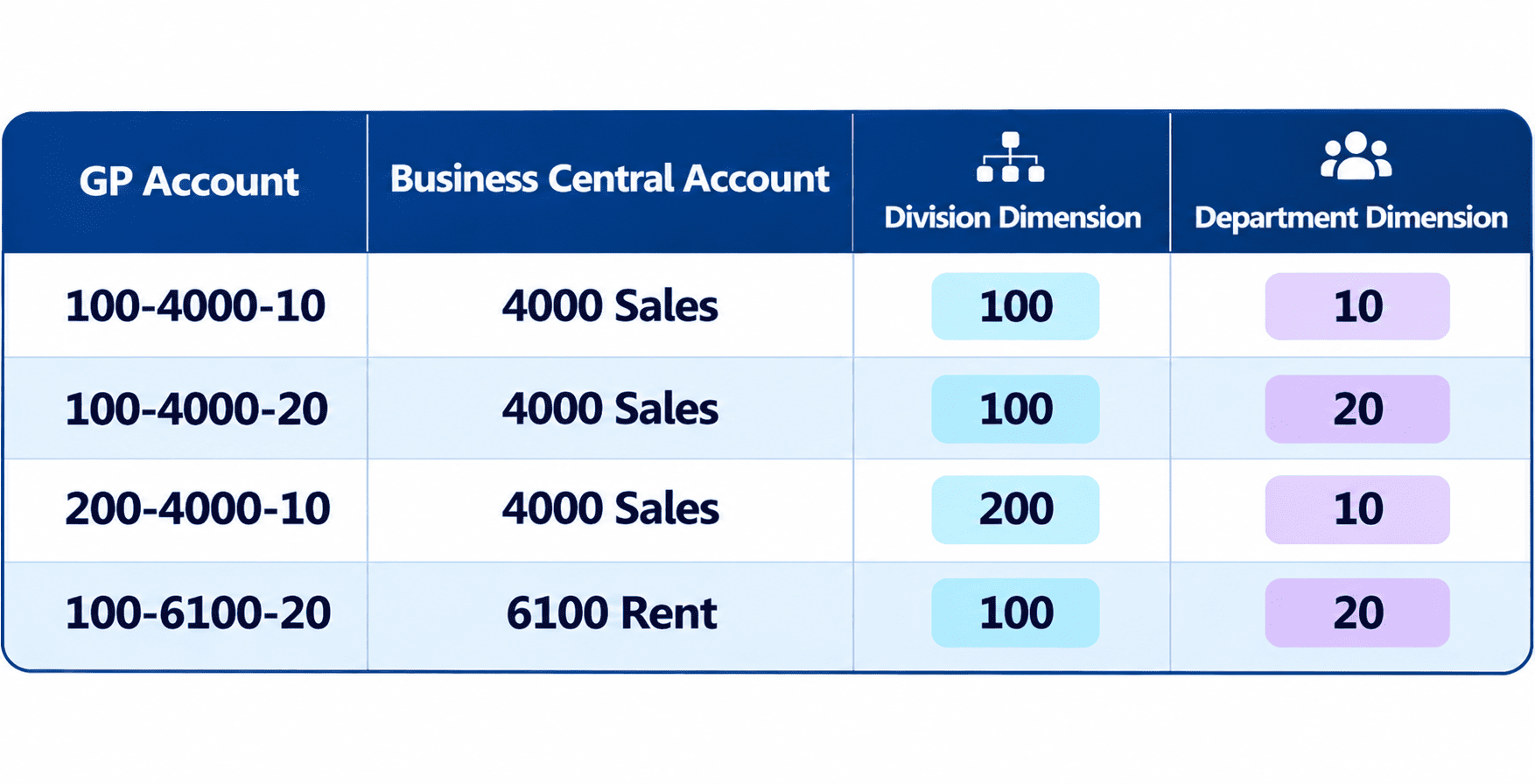
Four GP accounts become two Business Central accounts, with dimensions carrying the detail.
Common Mistakes to Avoid
- Copying GP exactly. The migration is the best chance you will have to simplify. Do not waste it.
- Too many dimensions. Every dimension adds data entry work. Keep only those that support real decisions.
- Using accounts where dimensions belong. Creating separate accounts for each region or product line recreates GP’s complexity.
- Ignoring defaults and rules. Without them, users will leave dimensions blank or enter wrong values, and reports will suffer.
- Forgetting budgets and integrations. Budgets, payroll interfaces and other integrations that use GP account strings must be updated to the new structure.
Frequently Asked Questions
Does Business Central support segmented account numbers like GP?
No. Business Central uses single main account numbers, with dimensions for analysis. The migration tool converts GP segments into dimensions automatically.
How many dimensions can Business Central have?
You can create many dimensions. Two are global dimensions stored on every entry, and up to eight (including the globals) can be set as shortcut dimensions for easy entry on lines.
Can I change my global dimensions after go-live?
Yes, Business Central includes a process to change global dimensions, but it updates existing entries and needs careful planning. It is far better to choose correctly before go-live.
Should we redesign the chart of accounts or keep GP’s structure?
In most cases, a redesign pays off. A simpler chart of accounts with well-planned dimensions makes reporting, budgeting and data entry easier for years to come.
How Nevas Technologies Can Help
At Nevas Technologies, we have more than two decades of experience with Microsoft Dynamics 365 and Chart of Accounts (COA) design is one of the areas where we add the most value during a Dynamics GP to Business Central migration. We work with your finance team to review your GP structure, design dimensions that match how you report, build the mapping and rebuild your key financial statements.
Our Business Central consultants, implementation plans and Business Central training help your team feel at home with the new structure from day one. You can also explore the full range of Business Central features.
Planning your new chart of accounts? Schedule a demo, or contact our team for a free consultation.