

Ask an auditor what worries them most in a Dynamics GP system, and the answer is rarely the software itself. It is who can do what. A clerk who can create a vendor and also print the check, a former employee whose login still works, or a finance team in which everyone has full access because it was easier during the implementation: these are the findings that appear in management letters year after year.
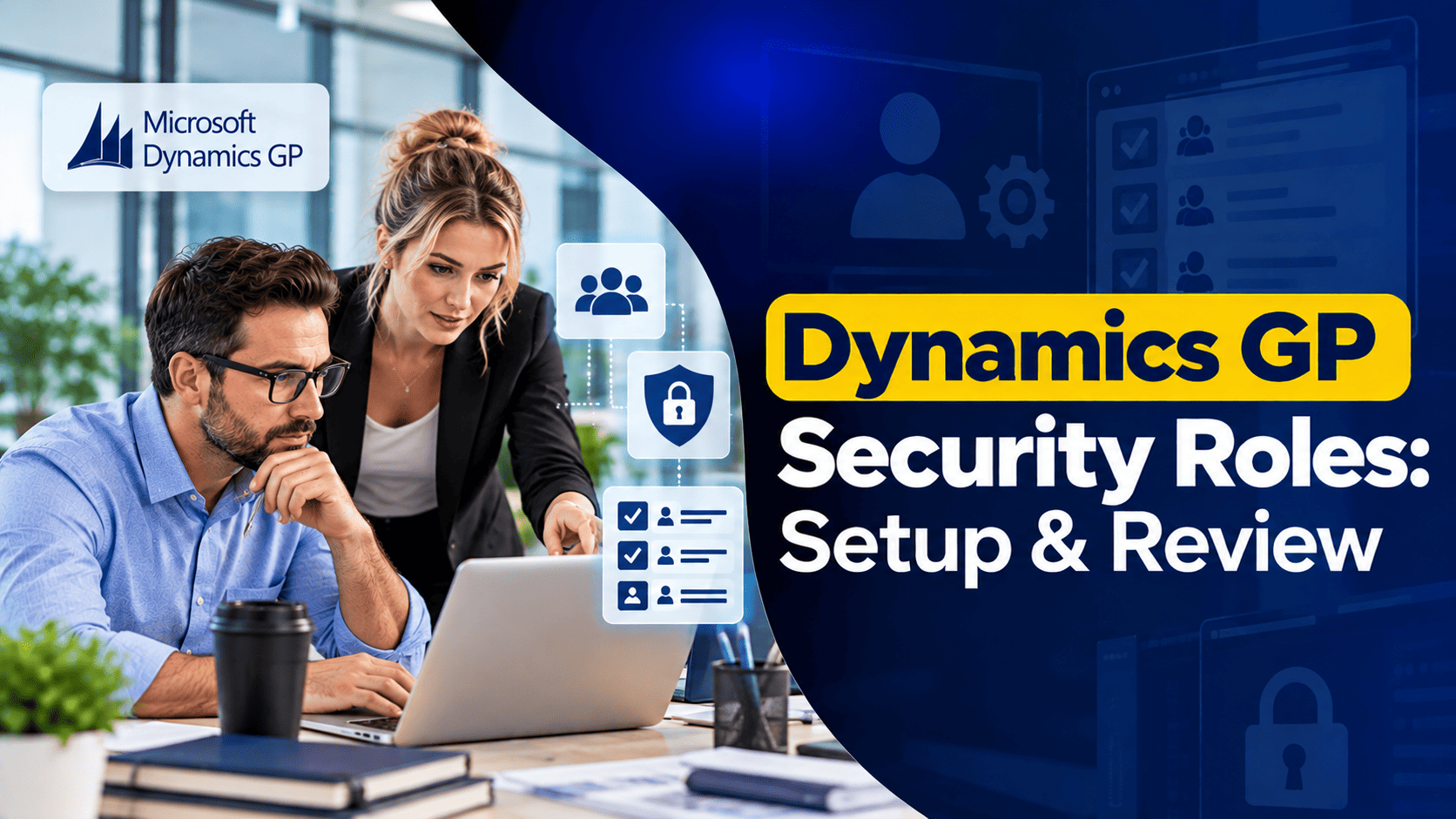
Microsoft Dynamics GP has a sound security model built on roles and tasks, but it only protects the business when it is set up deliberately and reviewed regularly. This article explains how the model works, how to set it up step by step, and a checklist that controllers and IT managers can use each quarter.
How Security in Dynamics GP Works
GP security is built from four layers, each one grouping the layer below it.
| Layer | What it is | Example |
|---|---|---|
| Operation | A single window, report or posting permission. | Vendor Maintenance window. |
| Task | A group of operations needed for one piece of work. | Maintain vendor records. |
| Role | A group of tasks that matches a job. | Accounts payable clerk. |
| User | A person, assigned one or more roles for each company. | Priya, AP clerk in Company A. |
Three rules follow from this structure, as Microsoft explains in its role-based security FAQ.
- Access is granted, never denied. A user can open a window only if at least one of their roles includes it. There is no way to take access away with a “deny” setting, so a user with two roles receives everything in both.
- Assignments are made per company. A user can be an AP clerk in one company and have inquiry access only in another.
- Every role includes a basic default task, which covers common windows such as the user date.
The setup windows are under Tools > Setup > System: Security Tasks, Security Roles and User Security.
The Built-In Roles and Their Risks
Dynamics GP is delivered with a set of ready-made roles and tasks, recognizable by names such as AP CLERK* or ACCOUNTING MANAGER*. They are a useful starting point, but they were designed to be broad, so they often grant more than a particular job needs. Copy a built-in role, give the copy your own name, and then remove what is not required, rather than assigning the original.
The most sensitive role is POWERUSER. It gives access to every window, report and posting function in every module. The system administrator account is assigned to it by default, and during implementations it is frequently given to key users “for now”. In many reviews we find that “for now” has lasted for years. Apart from one or two administrators, nobody should hold POWERUSER in a live company.
Setting Up Security, Step by Step
The following order keeps the work manageable and gives auditors a clear record.
- List the jobs, not the people: Write down each job in finance and operations: AP clerk, AR clerk, payroll administrator, purchasing officer, controller, inquiry user. Each job will become one role.
- Describe what each job must be able to do: For an AP clerk, this might be entering invoices, running payables inquiries and printing the aged trial balance, but not maintaining vendors or printing checks.
- Build or adapt the tasks: In Security Task Setup, copy the nearest built-in task and adjust its operations. Keep task names clear, for example AP_INVOICE_ENTRY.
- Build the roles: In Security Role Setup, combine the tasks for each job. Name roles after jobs, not after people, so that a new employee can be assigned without new design work.
- Assign roles to users: Use User Security Setup, company by company. Assign only the roles the person needs in each company.
- Set modified forms and reports: If your company uses a customization of a window or report, choose in the same window which version each user sees.
- Test with a real user: Sign in as a test user with each role, try the daily work and a few things the role should not allow, and correct the gaps.
- Document the result: Keep a matrix of roles, tasks and users, signed off by the controller. Your auditors will ask for it.
Segregation of Duties
Segregation of duties means that no single person can carry out every step of a sensitive process without someone else being involved. In Dynamics GP, the combinations that auditors examine most closely are these.
| Should be separated | Why |
|---|---|
| Create or change vendors, and enter or pay vendor invoices. | Prevents payments to fictitious vendors. |
| Enter journal entries, and post or approve them. | Ensures a second person reviews adjustments. |
| Maintain employee pay rates, and process payroll. | Prevents unauthorized pay changes. |
| Create customers or credit limits, and apply cash receipts. | Protects against hidden write-offs. |
| Maintain security, and use financial windows. | Stops an administrator from granting themselves access unnoticed. |
Smaller organizations cannot always separate every duty, because the same two or three people do most of the work. In that case, compensating controls are acceptable: a manager reviews the vendor change report every month, or approval workflows are switched on for payables batches and journal entries. Most controllers will recognize that a documented review is better than a theoretical separation that nobody follows.
Other Security Layers to Check
Roles and tasks control windows and reports, but several other layers decide what a user can really reach.
- SQL Server logins: Every Dynamics GP user also has a SQL Server login. Strong password rules, expiry and lockout should be applied there, and the sa and DYNSA accounts should be used only for administration.
- Account-level security: Limits which general ledger accounts a user can see, which is useful for departmental budgets.
- Field-level security: Can hide or lock individual fields, such as bank account numbers or salary amounts.
- Direct database access: Excel refreshable reports, SmartList exports and reporting tools read data outside Dynamics GP’s own security, so access to them must be controlled separately.
- Workflow approvals: Approvals for batches, purchase requisitions and vendor changes add a second person to the process.
- Third-party products: Often have their own security settings, which are easy to forget after an upgrade.
A Quarterly Review Checklist
Security that was correct at go-live drifts as people join, leave and change roles. We recommend a short review every quarter and a full review once a year.
- Compare the list of active Dynamics GP users with the current staff list from HR, and deactivate anyone who has left.
- Check who holds POWERUSER, and remove it from anyone who is not an administrator.
- Review each user’s roles in every company against their current job.
- Check the segregation-of-duties combinations in the table above, and record any accepted exceptions with their compensating control.
- Review any new task or role created since the last review, and confirm who approved it.
- Check SQL Server logins for shared accounts, old test users and accounts that have not been used for 90 days.
- Confirm that access to reporting tools and refreshable Excel files matches the users’ roles.
- Check that security still works after any update or Dynamics GP upgrade, because new windows may need to be added to existing tasks.
- File the signed results with your audit documentation.
Analyzing security is easier with good reports. Dynamics GP’s Security Resource Descriptions table, populated through the Clear Data window, shows which roles and tasks give access to a given window, and SQL queries or third-party tools can then produce a full user-by-window matrix.
How Nevas Technologies Helps
Nevas Technologies has supported Dynamics GP for more than 20 years and regularly helps finance teams prepare for audits. Our consultants review existing security, design roles that match your jobs, remove excess POWERUSER access, set up approval workflows, and produce the documentation auditors expect. Our Dynamics GP support team can carry out the quarterly review for you, and Dynamics GP training prepares your system administrator to maintain security in-house.
For companies planning a Dynamics GP to Business Central migration, a clean GP security design is also a strong starting point, because the job-based roles carry over as a model for permission sets in Dynamics 365 Business Central.
Frequently Asked Questions
Can we deny one window to a user who otherwise has full access?
No. GP security only grants access. To remove a window, take the user off the role that contains it and assign a narrower role instead.
Does every user need a separate GP license?
GP is licensed by concurrent users, so the number of people who can sign in at the same time is limited by your Dynamics GP license. Security roles are separate from licensing, but removing unused logins keeps both tidy.
How often should we review security?
A light review each quarter and a full review each year, plus a check whenever someone changes job or leaves.
Is it safe for users to share a login?
No. Shared logins make it impossible to know who posted a transaction, which auditors treat as a serious weakness.
Conclusion
Summarizing the approach: design roles around jobs, grant only what each job needs, keep POWERUSER for administrators, separate sensitive duties or document how you compensate, and review the result every quarter. We emphasize the review, because a well-designed setup becomes unsafe within a year if nobody looks at it.
If you would like an independent security review before your next audit, contact our team or request a quote.