


Many businesses still run older versions of Microsoft Dynamics GP. The system works, the team knows it, and an upgrade never seems urgent. Then something changes: a payroll tax update will not install, the auditors ask about security patches, or the IT team wants to retire an old server. Suddenly the question becomes: “How do we get from where we are to the current version?”
The answer depends on the version you are running today. In this article, we will explain the upgrade path from each of the common older versions, Dynamics GP 2013, 2015, 2016 and 2018, to the current 18.x releases, and share what we have learned from running these projects for our clients.
First, What Does “18.x” Mean?
In October 2019, Microsoft moved Dynamics GP to its Modern Lifecycle Policy. Instead of new named versions such as Dynamics GP 2016 or 2018, Dynamics GP now receives yearly releases numbered 18.2, 18.3, 18.4 and so on. Each one usually arrives in October and includes the year-end payroll update.
At the time of writing:
- 18.8 (October 2025) is the established release preceding the October 2026 release.
- 18.9 is the October 2026 release. Microsoft lists 18.7.1756 or later as the supported starting point for moving to it.
The important thing to recognize is this: under the Modern Lifecycle, you stay supported only if you keep reasonably current. Being on “some version of 18.x” is not enough. And because product support for all Dynamics GP versions ends on 31 December 2029, the 18.x line is also the final version of Dynamics GP.
If you would like the wider background, read our article on what Great Plains Software is and where it stands today.
Why Older Versions Cannot Jump Straight to the Latest Release
Each Dynamics GP upgrade converts your database tables to the new structure. Microsoft tests specific “from” and “to” combinations, and only those are supported. If you skip too far, the conversion scripts may not recognize your tables, and the upgrade can fail part-way through.
This is why older systems need a stepped upgrade: you move to an intermediate version first, then on to the current release. The exact steps depend not only on your version but on your build number, which you can see under Help > About Microsoft Dynamics GP. We would emphasize checking this before planning anything, because two companies both “on Dynamics GP 2016” can have quite different paths.
The Upgrade Path for Each Version
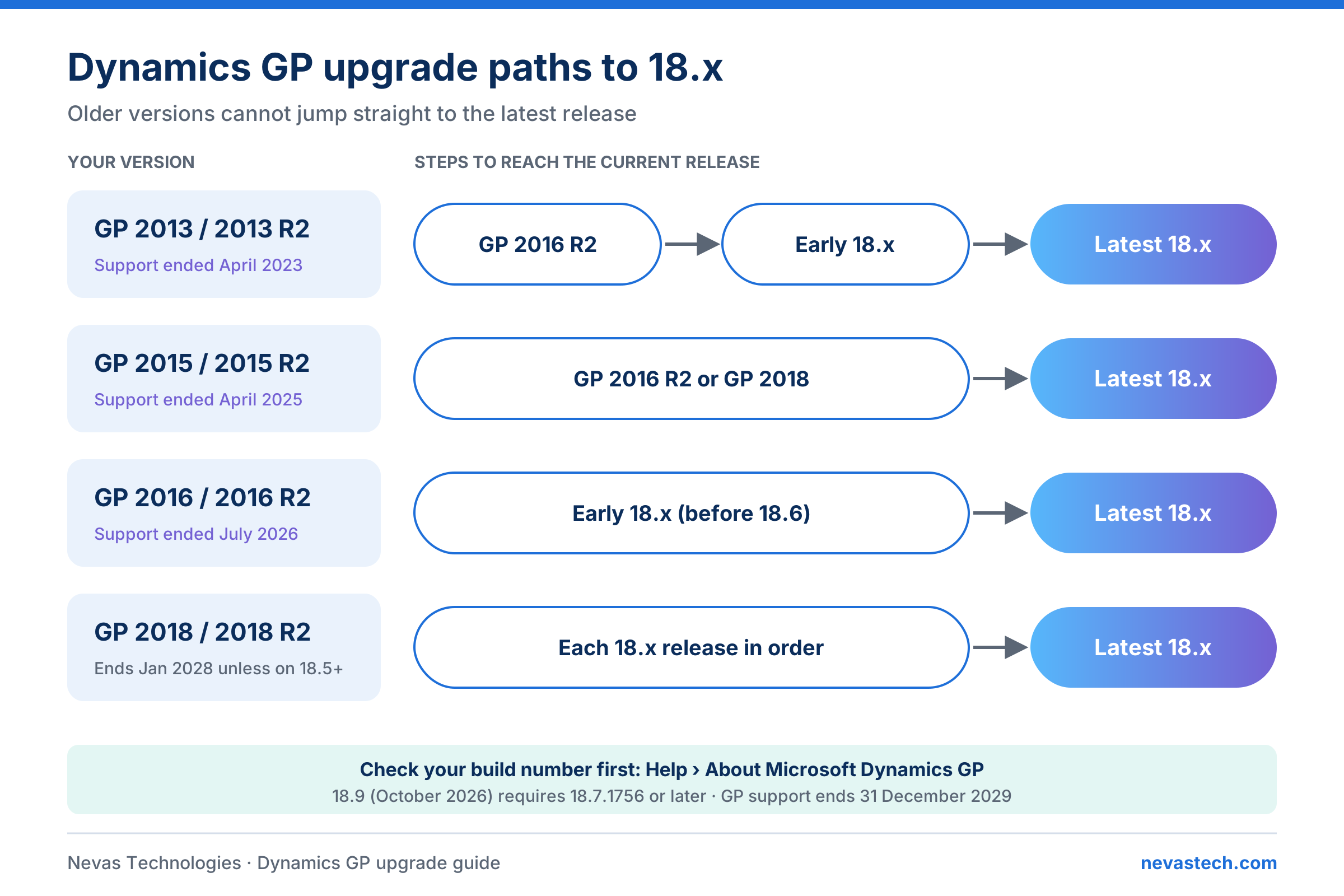
| You Are On | Support Status | Typical Path to Current 18.x |
|---|---|---|
| Dynamics GP 2013 / 2013 R2 | Ended April 2023 | Dynamics GP 2013 → Dynamics GP 2016 R2 → early 18.x → latest 18.x |
| Dynamics GP 2015 / 2015 R2 | Ended April 2025 | Dynamics GP 2015 → Dynamics GP 2016 R2 or Dynamics GP 2018 → latest 18.x |
| Dynamics GP 2016 / 2016 R2 | Ended July 2026 | Dynamics GP 2016 → early 18.x (before 18.6) → latest 18.x |
| Dynamics GP 2018 / 2018 R2 | Ends January 2028 unless moved to 18.5+ | Step through the 18.x releases to the latest |
| Dynamics GP 18.x (any) | Supported if kept current | Upgrade to the next release within the one-year window |
Let us look at each one in a little more detail.
From Dynamics GP 2013 or Dynamics GP 2013 R2
This is the longest path, because Dynamics GP 2013 is now several generations behind. A direct move to 18.x is not supported. In practice, the route is:
- Upgrade to Dynamics GP 2016 R2, the intermediate version that accepts Dynamics GP 2013 R2 data.
- Upgrade from Dynamics GP 2016 R2 to an early 18.x release that accepts Dynamics GP 2016 data.
- Move up to the current 18.x release.
If you are on an early Dynamics GP 2013 build, without Service Pack 2, you may need a Dynamics GP 2013 patch first. Dynamics GP 2013 also often runs on old SQL Server and Windows versions, so a server refresh is usually part of the project.
From Dynamics GP 2015 or Dynamics GP 2015 R2
Dynamics GP 2015 also needs an intermediate step. Microsoft notes that some older Dynamics GP 2015 builds should first be patched to a later Dynamics GP 2015 build to avoid known table conversion errors. After that, the usual route is through Dynamics GP 2016 R2 or Dynamics GP 2018, then on to the current 18.x release.
From Dynamics GP 2016 or Dynamics GP 2016 R2
Dynamics GP 2016 is the most common version we see in upgrade enquiries. Microsoft has stated there is no direct upgrade from Dynamics GP 2016 to 18.6 or later. So you first move to an earlier 18.x release, such as 18.2 through 18.5, and then continue up to the current release.
Since extended support for Dynamics GP 2016 ended in July 2026, these customers no longer receive security fixes, so this upgrade should not wait.
From Dynamics GP 2018 or Dynamics GP 2018 R2
Dynamics GP 2018 is the shortest path, because it is already part of the 18.x family. You move through the yearly releases in sequence until you reach the current one. A useful point: applying a later tax update or hotfix to Dynamics GP 2018 brings the system to 18.5 or later, which places it under the Modern Lifecycle. Without that, Dynamics GP 2018 extended support ends on 11 January 2028.
Do Not Forget the Rest of the Environment
An upgrade is rarely just Dynamics GP itself. When analyzing your environment, include:
- SQL Server: Support for SQL Server 2016 ended with Dynamics GP 18.7, so many older systems need a newer SQL Server at the same time.
- Windows Server and workstations: Check that your operating systems are supported for the target release.
- Third-party products: Every add-on, such as payroll, banking, document management and reporting tools, needs a version compatible with your target release. Check with each vendor before you book dates.
- Customization: Dexterity modifications, VBA, Modifier changes and custom SQL objects must all be tested, and some will need updating. Note that VBA is not supported on Windows Server 2019.
- Reports: Modified Report Writer, Word templates and SSRS reports should be checked and upgraded.
- Management Reporter: Confirm it runs on the latest cumulative update and that the data mart refreshes correctly after the upgrade.
- Web Client and Web Services: If you use them, they must be upgraded and tested as well.
Licensing and Enhancement Plans
To upgrade, your organization needs an active Enhancement Plan (or Service Plan) with Microsoft, or a subscription license. These plans give you the right to newer versions. If your plan has lapsed, your partner will need to review your license and arrange a reinstatement before the upgrade can go ahead. It is worth checking this early, as it affects your budget.
You can review typical costs on our Dynamics GP pricing page.
A Sensible Upgrade Plan
From our experience, a well-run Dynamics GP upgrade follows these stages:
- Assess: Record the version, build, SQL Server, add-ons, customizations and number of companies.
- Plan the path: Confirm each intermediate version and the order of steps.
- Prepare: Post open batches, run data integrity checks such as CheckLinks, and take full backups.
- Test upgrade: Upgrade a copy of your data on a test server. For stepped upgrades, run every step.
- User testing: Have key users test daily tasks, month-end, reports and integrations.
- Live upgrade: Repeat the steps on production, usually over a weekend.
- Post-go-live support: Keep consultants available for the first close.
We always recommend avoiding your busiest periods, such as month-end, year-end and payroll year-end. Our article on the Dynamics GP support timeline provides additional context for planning ahead.
Upgrade, or Move to Business Central?
This is the question many finance leaders now ask. If Dynamics GP support ends in 2029, why spend money upgrading?
The honest answer is that both decisions can be right. Upgrading to the current 18.x release keeps you secure, compliant and supported while you plan properly. It also matters for migration: Microsoft’s cloud migration tool to Business Central works only with supported Dynamics GP versions, so an older system may need an upgrade before it can migrate at all.
If your system is very old, heavily customized, or due for a server refresh anyway, it may make better sense to move directly to Dynamics 365 Business Central. Our Dynamics GP to Business Central migration team can help you compare both options with real costs.
How Nevas Technologies Can Help
Nevas Technologies has worked with Dynamics GP since version 7.0 and has completed upgrades from almost every release. We can help you:
- Plan and deliver a stepped Dynamics GP upgrade, including testing and go-live.
- Keep you running smoothly with Dynamics GP support.
- Train your users on new features with Dynamics GP training.
- Compare upgrade costs against a move to Business Central with our Business Central consultants.
Contact Nevas Technologies to discuss your Dynamics GP environment and upgrade requirements.
Summarizing the Key Points
- Dynamics GP 2013 and Dynamics GP 2015 need two or more steps to reach 18.x.
- Dynamics GP 2016 must go to an earlier 18.x release before moving to 18.6 or later.
- Dynamics GP 2018 steps through the 18.x releases in order.
- Check your build number, add-ons, SQL Server and customizations before planning.
- Stay current after you upgrade, as the Modern Lifecycle requires regular updates until 2029.
If you would like a clear upgrade plan for your system, contact Nevas Technologies and our Dynamics GP specialists will assess your environment.
Frequently Asked Questions
Can I upgrade directly from Dynamics GP 2016 to Dynamics GP 18.8?
No. Microsoft does not support a direct upgrade from Dynamics GP 2016 to 18.6 or later. You need an intermediate 18.x release first.
How do I find my Dynamics GP version and build number?
In Dynamics GP, go to Help > About Microsoft Dynamics GP. The build number tells your partner exactly which path applies.
Do I need an Enhancement Plan to upgrade?
Yes, unless you have a subscription license. If the plan has lapsed, it will need reinstating.
Is it worth upgrading Dynamics GP if support ends in 2029?
Often yes. It keeps you secure and compliant, and a supported version is needed to use Microsoft’s migration tool to Business Central.
Schedule a consultation with Nevas Technologies to discuss your upgrade or migration options.