

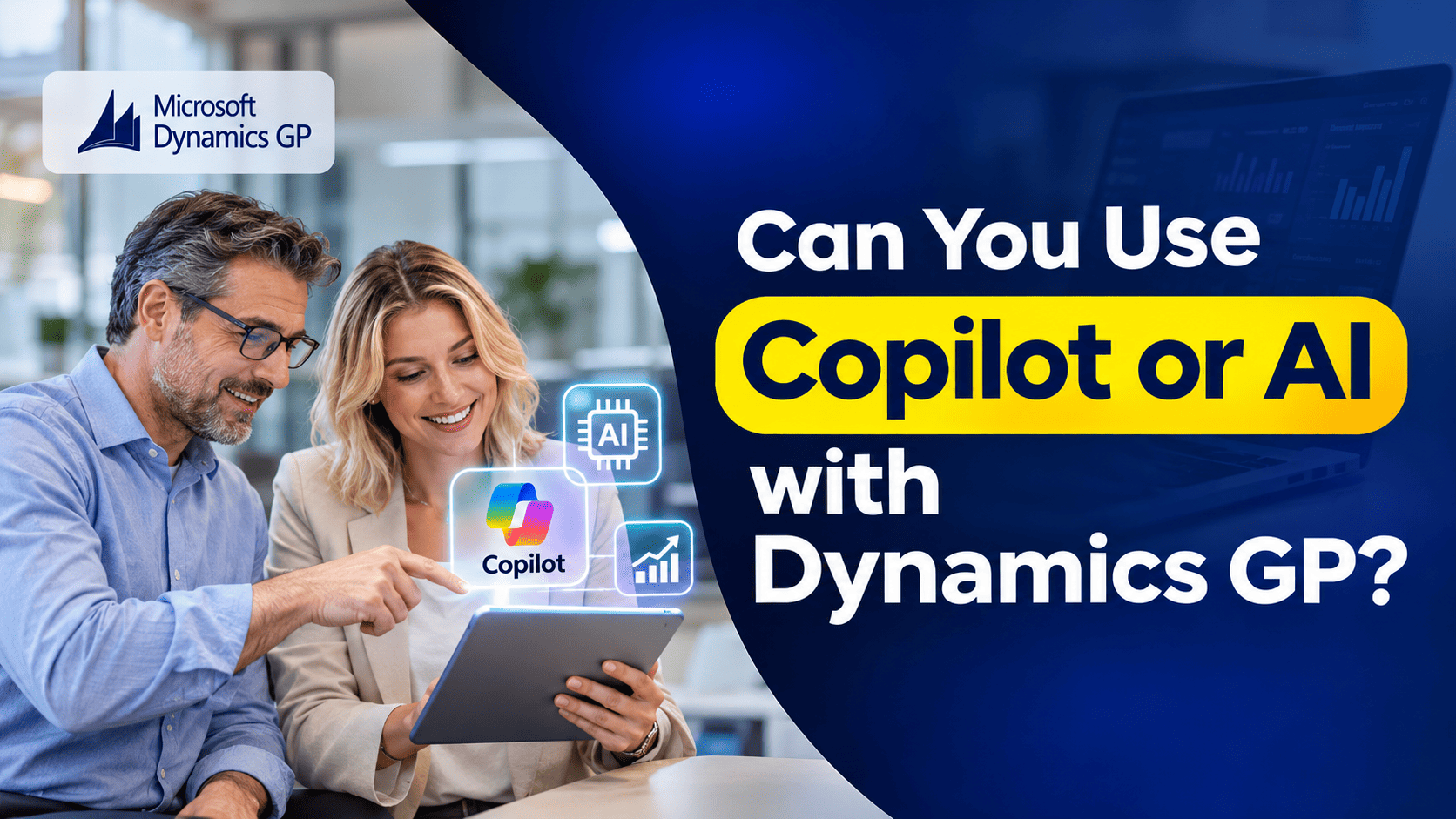
Can You Use Copilot and AI with Microsoft Dynamics GP?
Almost every conversation we have with finance teams today includes the same question: where does AI fit into our business? If your organization runs on Microsoft Dynamics GP, that question usually comes with a second one: can we use Copilot with Dynamics GP, or do we have to move first?
The honest answer is that you can do more with AI and Dynamics GP than many people expect, but less than you might hope. In this article, we explain what is realistic today, the practical ways companies are connecting GP data to AI tools, and where the limits are. We also look at how Dynamics 365 Business Central approaches AI, so you can decide what makes sense for your business.
First, What Do We Mean by Copilot and AI?
“Copilot” is a name Microsoft uses for several different AI assistants, and that can cause confusion. It helps to separate them:
- Microsoft 365 Copilot works inside Outlook, Word, Excel, Teams and other Microsoft 365 apps. It can help with summarizing documents, drafting emails and analyzing spreadsheets.
- Copilot in Dynamics 365 applications, such as Business Central, is built directly into the ERP screens and understands your business records.
- Microsoft Copilot Studio is a tool for building your own AI assistants, often called agents, that can connect to different data sources, including systems outside the Microsoft cloud.
- Copilot in Power BI helps users build reports and ask questions about data in plain language.
When people ask whether GP “works with Copilot”, they usually mean one of these. The answer is different for each.
Does Dynamics GP Have Built-In Copilot?
No. Microsoft has not added Copilot, or any other generative AI features, into the Dynamics GP product itself, and there are no plans to do so. Microsoft Dynamics GP is in its final phase of life: product updates, tax updates and technical support end on December 31, 2029, and security updates end on April 30, 2031. Microsoft’s AI development effort is focused entirely on its cloud applications, including Microsoft Business Central.
This means you will not open a GP window and see a Copilot button, AI-generated descriptions or an assistant that can answer questions about the record in front of you. It is important to recognize this clearly, because some marketing material can give the impression that AI is simply a feature you switch on.
However, “not built in” does not mean “not possible”. GP stores its data in Microsoft SQL Server, and that data can be connected to modern AI tools in several ways.
Realistic Ways to Use AI with Dynamics GP Data
The practical approach is to bring AI to your GP data, rather than trying to bring AI into the GP application. Here are the options we see working well today.
1. Copilot in Excel with GP Reports
This is the simplest starting point. Many Dynamics GP users already export reports, SmartLists and financial statements to Excel. If your organization has Microsoft 365 Copilot licenses, users can ask Copilot in Excel to summarize trends, highlight unusual figures, build charts or explain variances.
It does not need any technical setup, but the data is only as fresh as the last export, and someone has to prepare the file each time.
2. Power BI with Copilot on GP Data
A more structured approach is to connect Power BI to your GP database. Power BI can read GP data on a schedule through an on-premises data gateway, and Copilot in Power BI then helps users build reports and ask questions in plain language, such as “which customers have the highest overdue balances this quarter?”
This approach gives you regularly refreshed dashboards without changing GP itself. It does require some setup, a good understanding of GP’s table structure, and the right Power BI and Copilot licenses.
3. Custom Agents with Copilot Studio
For organizations that want something closer to a conversational assistant, Microsoft Copilot Studio can be used to build an agent that reads GP data through a secure connection. Users can then ask questions in Teams or another channel, and the agent looks up the answer in GP.
This is genuinely useful for common questions, such as checking an order status, a vendor balance or stock levels. But it is a custom project. Someone needs to design the agent, decide what data it can access, set up security and test it carefully. In most cases, these agents should be read-only, as writing data back into GP outside its own business logic carries real risk.
4. Moving GP Data into a Modern Data Platform
Some businesses copy their GP data into a cloud data platform, such as Azure Data Lake or Microsoft Fabric, where it can be combined with data from other systems and used by AI and analytics tools. Microsoft’s cloud migration tooling for Business Central also includes an option to replicate GP data to Azure Data Lake, which can be useful for keeping historical GP data accessible after a move.
5. Third-Party AI Add-ons
A number of independent software vendors now offer AI tools designed for GP, often focused on reporting, analytics or document processing such as reading vendor invoices. These can deliver value quickly, but each one is another product to license, support and secure, and each will need to be replaced or retired when you eventually leave GP.
The Limits You Should Recognize
Before investing in any of these options, it is worth being clear about the limits:
- AI cannot see what GP does not record well. If your data has duplicates, inconsistent naming or missing fields, AI will reflect those problems rather than fix them.
- Connections need care. Linking AI tools to a SQL database that holds financial data requires proper security, permissions and monitoring.
- Most options are read-only. AI can help with summarizing and analyzing GP data, but it cannot safely carry out tasks inside GP, such as creating orders or applying payments.
- Investment has a limited lifespan. Anything you build around GP will need to be rebuilt or replaced when you move to a new system. With support ending in 2029, the payback period is short.
We want to emphasize that none of this makes AI with GP a bad idea. A small, focused project, such as a Power BI dashboard with Copilot, can deliver real value now and much of the work, especially the data cleanup, carries forward to your next system.
How Business Central Approaches AI
This is where the difference between an older system and a modern one becomes very clear.
In Dynamics 365 Business Central, Copilot is part of the product. Microsoft currently includes it with the Business Central license at no extra cost, and it appears throughout the system. Examples include:
- Chat with Copilot, to ask questions about your data and find your way around the system.
- Bank account reconciliation assistance, which suggests matches between bank transactions and ledger entries.
- Analysis assist, which helps users build and adjust data analysis views by describing what they want.
- Marketing text suggestions for item descriptions.
- Summaries of customer, vendor and other records.
Business Central also includes AI agents that can carry out multi-step tasks, such as processing incoming sales order requests or vendor invoices, and hand the results back for review. These agents are billed separately based on usage, so they should be budgeted on their own.
There are two important points to note. Copilot and agents are available only in Business Central online, not in on-premises deployments. And, like any AI tool, they work best when your data is clean and your processes are well defined.
You can explore more of what the platform offers on our Business Central features and Business Central cloud pages.
So, What Should You Do Today?
The right path depends on where your organization is in its plans:
- If you plan to stay on GP for a while, start small. A Power BI dashboard with Copilot, or Copilot in Excel for your finance team, can bring quick benefits without major investment.
- If you are planning to move in the next year or two, focus your effort on cleaning and organizing your GP data. This makes the migration smoother and prepares you to use AI properly in Business Central.
- If AI is a key part of your strategy, the move to Business Central will give you far more than any customization built around GP. Our Dynamics GP to Business Central migration service is designed to help you get there smoothly.
Frequently Asked Questions
Is Copilot Available Inside Dynamics GP?
No. Microsoft has not added Copilot to the GP product. You can, however, connect GP data to AI tools such as Copilot in Excel, Copilot in Power BI and custom agents built with Copilot Studio.
Can an AI Agent Enter Transactions in Dynamics GP?
It is technically possible to build, but we do not recommend it. Writing data directly into GP’s database bypasses its business rules. For most organizations, AI connected to GP should be read-only.
Is Copilot Included with Business Central?
Yes. Microsoft currently includes Copilot with the Business Central license at no extra cost, for Business Central online. AI agents that carry out tasks on their own are billed separately based on usage.
Does Copilot Work with Business Central On-Premises?
No. Copilot and agents are available only in Business Central online. If AI is important to your plans, the cloud version is the right choice.
How Nevas Technologies Can Help
At Nevas Technologies, we have more than two decades of experience with Microsoft Dynamics ERP and CRM products. We can help you make the most of your GP data today, whether through better reporting or a focused AI project, and guide you through a smooth move to Business Central when you are ready.
Our Dynamics GP support team can review your current setup, and our Business Central consultants can show you how Copilot works with real business processes. You can also review our Business Central pricing and licensing to understand the costs involved.
Curious about what AI could do for your business? Schedule a demo, watch our Business Central demo videos, or contact our team for a free consultation.