


For most finance teams, the general ledger year-end close in Microsoft Dynamics GP happens only once a year. That is exactly why it causes anxiety. By the time it comes around again, the person who did it last year may have moved on, the notes are hard to find, and nobody is quite sure of the right order.
The good news is that the process itself is straightforward once you understand what Dynamics GP is actually doing. And if something does go wrong, Dynamics GP gives you a way to reopen the year.
In this article, we will walk you through what the year-end close does, how to prepare, the steps to follow, and how to reopen a closed year if you need to.
What the Year-End Close Actually Does
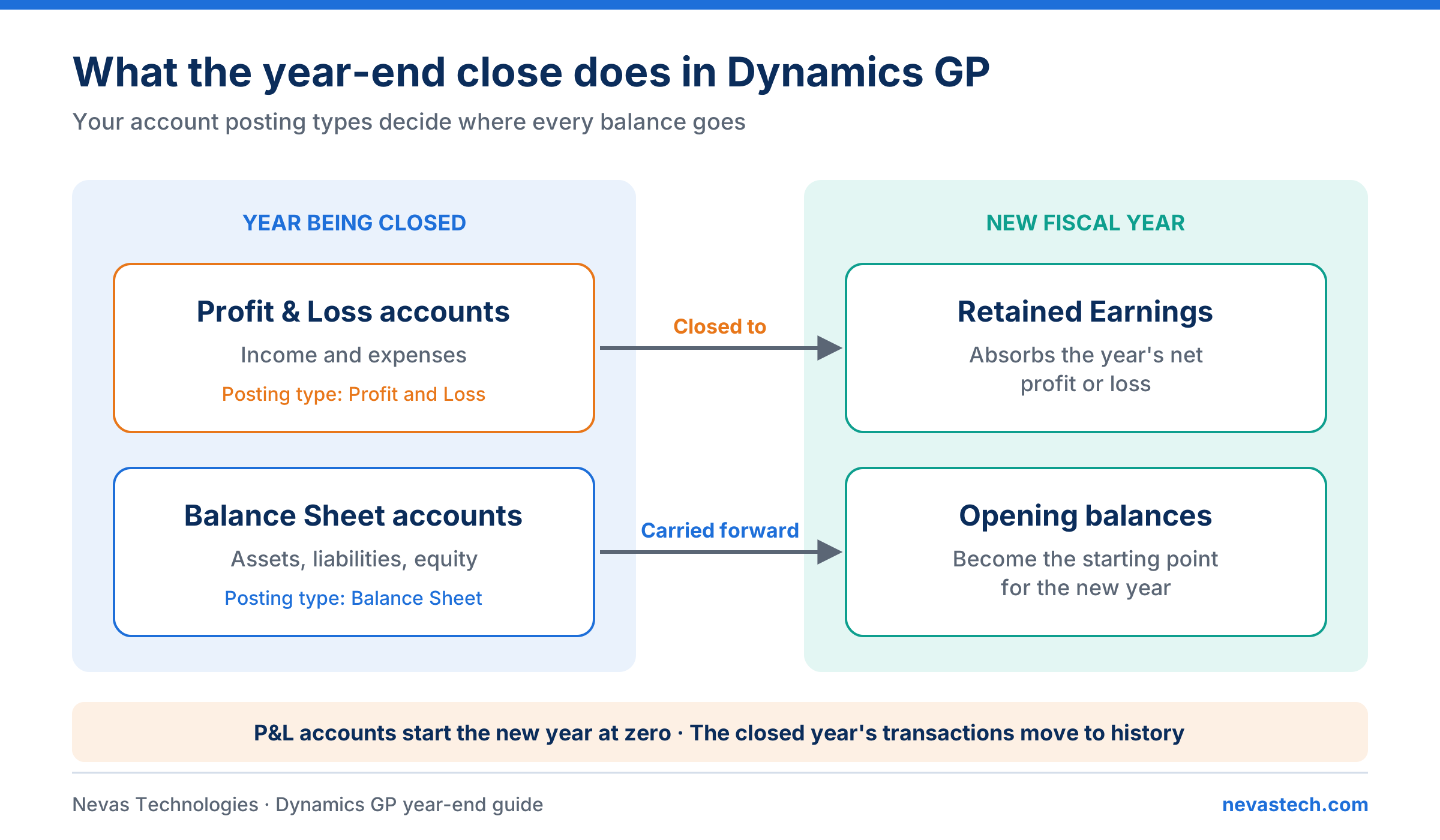
Before pressing any buttons, it helps to recognize what Microsoft Dynamics GP (Great Plains) changes when you close the year. In simple terms, the year-end close:
- Closes profit and loss accounts. The balances of all income and expense accounts are moved to your retained earnings account, so they start the new year at zero.
- Carries forward balance sheet accounts. Assets, liabilities and equity balances become the opening balances for the new year.
- Moves the year to history. The closed year’s transactions move into the general ledger history tables, provided you keep history.
- Optionally clears unit accounts. Unit accounts, such as headcount or square metres, can be cleared if you choose to.
It does not close your fiscal periods for you, and it does not close the subledgers such as Receivables, Payables or Inventory. Those have their own year-end routines.
One more important point: the close does not need to happen on the first day of the new year. You can carry on posting into the new year normally while the old year stays open for audit adjustments. Most organizations close the general ledger only after the auditors have signed off.
Before You Start: Preparation
Most year-end problems come from skipped preparation. We would strongly suggest working through this list first.
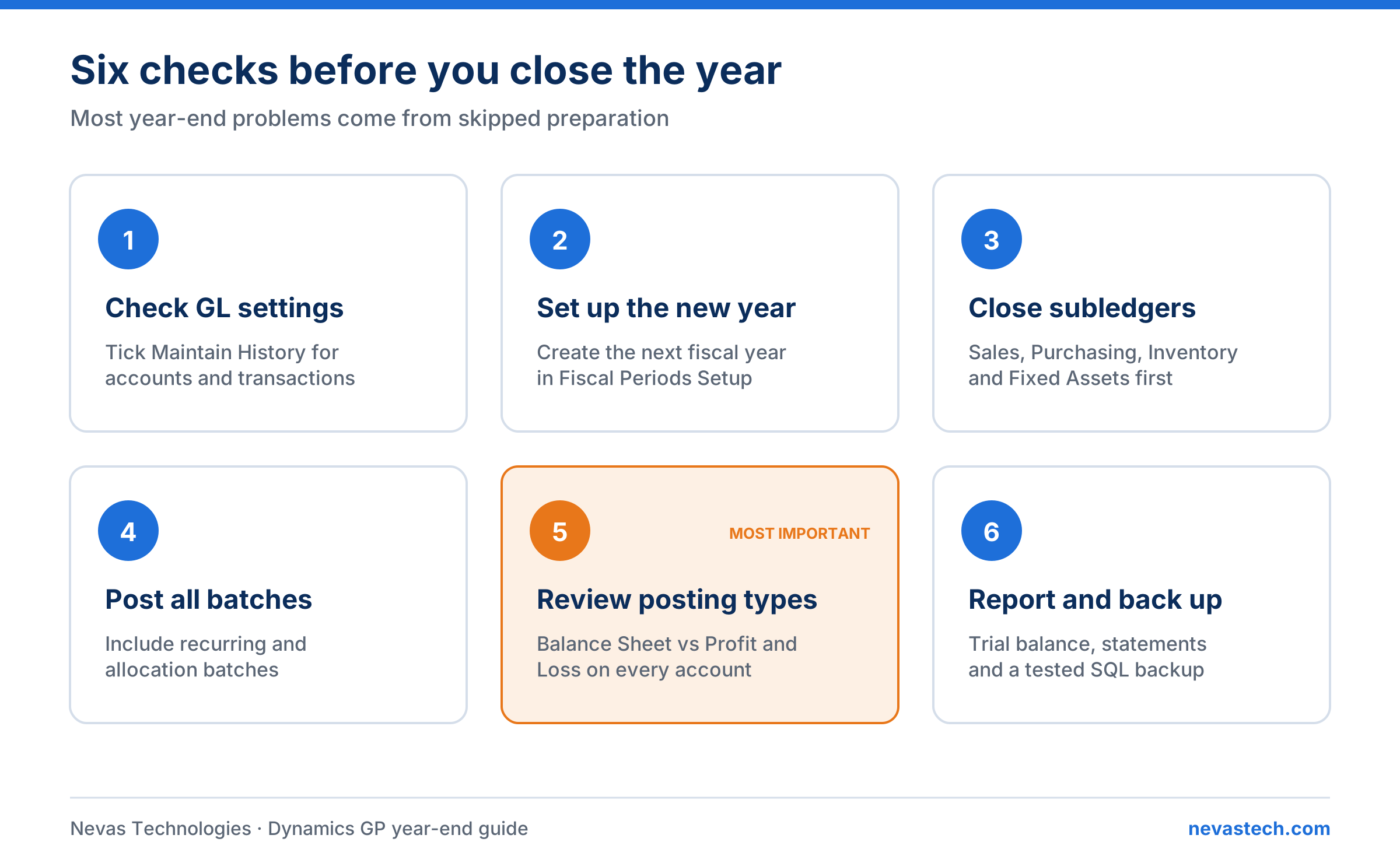
1. Check Your General Ledger Settings
Go to Financial > Setup > General Ledger and review three settings:
- Maintain History: Make sure both Accounts and Transactions are ticked. Without transaction history, you lose detail for the closed year, and you will not be able to reopen it later.
- Allow Posting to History: If ticked, you can post adjustments into the most recent closed year, and Dynamics GP will update the next year’s opening balances automatically. Most organizations keep this ticked.
- Retained Earnings account: Confirm the correct account. If your organization uses divisional retained earnings, for example by company segment or department, check that this option is set up correctly.
2. Set Up the New Fiscal Year
In Fiscal Periods Setup (under Tools > Setup > Company), create the new fiscal year before you close the old one. Dynamics GP needs the next year to exist so it can post opening balances into it.
3. Complete the Subledger Year-Ends First
The general ledger should be the last module you close. A typical order is:
- Sales (Receivables Management)
- Purchasing (Payables Management)
- Inventory
- Fixed Assets
- General Ledger
Payroll is different, as it closes on the calendar year for tax reporting, which may not match your fiscal year.
4. Post Everything for the Year
All batches dated in the year you are closing must be posted to the general ledger. This includes recurring batches, allocation batches and any batches sitting in subledgers that have not yet been transferred to the GL.
5. Review Account Posting Types
This is the step we would emphasize most. Every account in Dynamics GP has a posting type: either Balance Sheet or Profit and Loss. The year-end close relies entirely on this setting.
If a profit and loss account is wrongly set as balance sheet, its balance will be carried forward instead of closed to retained earnings. If a balance sheet account is wrongly set as profit and loss, its balance will be wiped out at year-end.
Use a SmartList or an account report to list all accounts with their posting type, and check them carefully. This is especially important if new accounts were added during the year.
6. Print Your Reports and Take a Backup
Before closing, print or save:
- A detailed and summary trial balance for the year.
- Your financial statements from Management Reporter.
Then take a full SQL backup of the company database and confirm it can be restored. Ask all users to log out of Dynamics GP while the close runs.
Step by Step: Running the Year-End Close
Once preparation is done, the close itself is quick.
- Go to Financial > Routines > Year-End Closing.
- Confirm the year being closed.
- Check the Retained Earnings account shown.
- Decide whether to clear balances of unit accounts.
- Decide whether to maintain inactive accounts with no balances or activity. Most organizations keep them.
- Click Close Year.
- Dynamics GP will ask you to confirm you have a backup. Only continue if you do.
When it finishes, Dynamics GP prints the Year-End Closing Report. Keep this report with your year-end file, as auditors often ask for it.
After the Close
Once the year-end close is complete, work through these checks:
- Run a trial balance for the first period of the new year and compare the opening balances with the closing balances from the old year.
- Confirm that profit and loss accounts start the new year at zero, and that retained earnings has moved by the year’s net profit or loss.
- Mark the old year’s fiscal periods as closed in Fiscal Periods Setup, so nobody posts into them by accident.
- If you use Management Reporter, check that your reports show the correct opening balances. If they do not, the data mart may need rebuilding. Our article on Management Reporter not connecting or not pulling data explains why.
Posting Adjustments After the Close
Auditors often find adjustments after the year has been closed. You do not need to reopen the year for these.
If Allow Posting to History is ticked, you can post a general ledger transaction dated in the most recent historical year. Dynamics GP will:
- Post the entry into the historical year.
- Automatically update the opening balances of the current year, including retained earnings for profit and loss entries.
This works only for the most recent closed year. For anything older, you will need to reopen the year.
How to Reopen a Closed Year in Dynamics GP
Sometimes a year needs to be reopened properly. Common reasons include:
- The year was closed too early, before all subledgers or adjustments were complete.
- Account posting types were wrong, so balances were closed or carried forward incorrectly.
- The wrong retained earnings account was used.
- Major restatements are needed.
In older versions of Dynamics GP, the only way to undo a year-end close was to restore a backup, which meant losing any work done since. Modern versions of Dynamics GP include a utility called Reverse Historical Year, which removes the closing entries and moves the year back from history.
Requirements
- You must have been maintaining account and transaction history when the year was closed.
- You can only reverse the most recent historical year. If you need to reopen an older year, you must reverse each later year first, one at a time.
- All users should be logged out, and you must have a fresh backup.
Steps to Reopen a Closed Year
- Take a full backup of the company database.
- Go to Financial > Utilities > Reverse Historical Year.
- Select the year to reopen and review the options.
- Process the reversal and print the report.
- Run a trial balance to confirm the year is open and the balances are as expected.
- Make your corrections, such as fixing posting types or posting missed entries.
- Run the year-end close again, following the same preparation steps.
If later years have also been closed, analyzing the full impact before reversing anything is essential. Reversing several years affects opening balances, reports and possibly your audit trail, so it is worth involving your accountant and your Dynamics GP partner before you start.
Common Mistakes and How to Avoid Them
| Mistake | What Happens | How to Avoid It |
|---|---|---|
| Next fiscal year not set up | The close cannot complete. | Create the new year in Fiscal Periods Setup first. |
| Wrong account posting types | Balances closed or carried forward incorrectly. | Review posting types before closing. |
| Transaction history not kept | Detail lost; year cannot be reopened. | Tick Maintain History for accounts and transactions. |
| Unposted batches left behind | Missing figures in the closed year. | Post or delete all batches for the year. |
| No backup | No safe way back if something fails. | Always take and test a backup. |
| Closing too early | Repeated adjustments and possible reversal. | Close after the audit is complete. |
Make It a Repeatable Process
Because the close happens only once a year, the single best investment is a written checklist specific to your organization. Include your module order, account checks, any customization or third-party products that need their own year-end steps, and who signs off each stage. Keep it with your year-end file and update it each year.
A Note on Dynamics GP’s Future
Microsoft has stopped selling new Dynamics GP licenses, and Dynamics GP product support ends on 31 December 2029. If your organization is planning a Dynamics GP to Business Central migration, a clean, well-closed year is the best possible starting point. In Dynamics 365 Business Central, the equivalent process uses a Close Income Statement job, and closed years can also be reopened when needed.
How Nevas Technologies Can Help
Nevas Technologies has supported Dynamics GP since version 7.0, and year-end is one of our busiest periods. Our team can help you:
- Review your setup and run the year-end close with you through our Dynamics GP support services.
- Reverse and reclose a year safely when something has gone wrong.
- Train your finance team on year-end routines through Dynamics GP training.
- Bring you onto a supported release with a Dynamics GP upgrade.
- Plan your move to Business Central with our Business Central consultants.
Summarizing the Key Points
- Prepare first: Review history settings, create the new fiscal year, complete subledger closes, post batches, check posting types and take a backup.
- Close last: The general ledger is closed after all other modules.
- Adjust without reopening: Post to the most recent historical year when allowed.
- Reopen when needed: Use Reverse Historical Year, one year at a time, with a backup in place.
With good preparation, the Dynamics GP year-end close is a calm, predictable task rather than a stressful one.
If you would like support with your next year-end, contact Nevas Technologies and our Dynamics GP specialists will be glad to help.
Frequently Asked Questions
Do I have to close the year on the first day of the new year?
No. You can post into the new year while the old year stays open. Most organizations close after the audit.
Can I post audit adjustments after closing?
Yes, if Allow Posting to History is ticked. This applies to the most recent closed year only.
Can I reopen a year closed several years ago?
Yes, but you must reverse each later year first, one at a time, and you must have kept transaction history.
Does the general ledger close also close Payables and Receivables?
No. Each subledger has its own year-end routine, which should be completed before the general ledger close.