
What Is Dynamics 365 Business Central?
If you’re a small or mid-sized business outgrowing QuickBooks or Sage, or you’re still running an aging on-premises system like Dynamics NAV or GP, chances are Microsoft Dynamics 365 Business Central has come up in your research. This guide breaks down what it is, what it costs, and what to expect at every stage — from implementation to ongoing support.
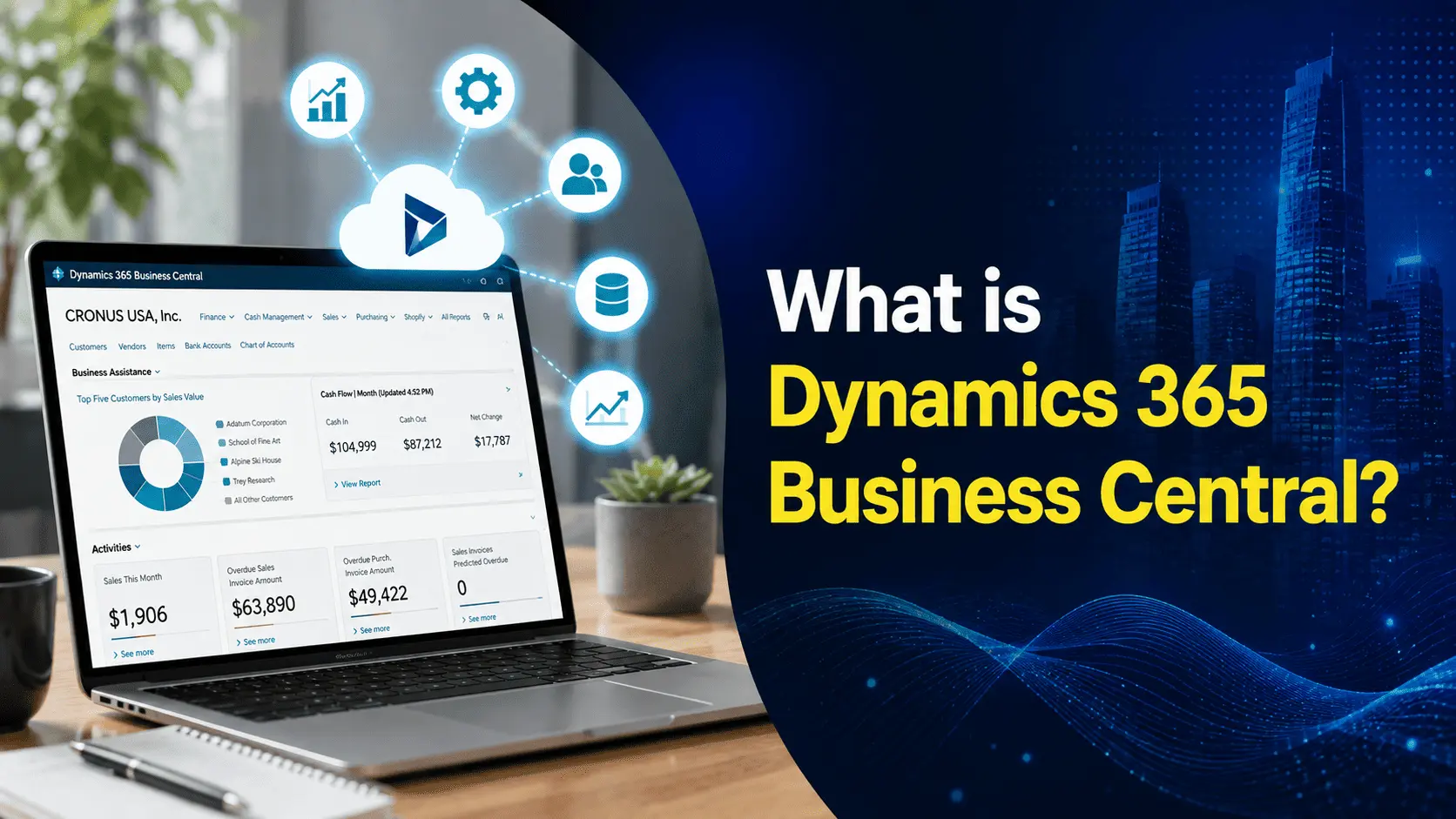
Microsoft Dynamics 365 Business Central is a cloud-based enterprise resource planning (ERP) system built for small and mid-sized businesses. It brings finance, sales, purchasing, inventory, project management, manufacturing, and service operations into a single connected platform, replacing the patchwork of spreadsheets, standalone accounting software, and disconnected tools many growing businesses rely on.
Business Central is the modern, cloud-native successor to Microsoft Dynamics NAV (formerly Navision), and it’s part of the broader Dynamics 365 product family that also includes Sales, Customer Service, and Supply Chain Management. Unlike enterprise-scale ERP platforms such as SAP or Oracle, Business Central is purpose-built for organizations roughly in the 10–250 employee range — companies that need real ERP functionality without the cost and complexity of a large enterprise deployment.
Because it’s built on Microsoft’s cloud infrastructure, Business Central integrates natively with tools most businesses already use: Excel, Outlook, Teams, and Power BI. It’s also extensible through Microsoft’s AppSource marketplace, which offers hundreds of industry-specific add-ons for manufacturing, retail, distribution, professional services, and more.
Key Features
Business Central’s functionality is organized around a few core areas:
- Financial management — General ledger, accounts payable/receivable, bank reconciliation, budgeting, fixed assets, and multi-currency/multi-entity consolidation. Financial reports can be built directly in Excel using live data.
- Sales and customer management — Quote-to-cash workflows, opportunity tracking, and basic CRM functionality including contact and pipeline management. Businesses needing deeper CRM capability often pair it with Dynamics 365 Sales.
- Purchasing and inventory — Vendor management, purchase orders, inventory tracking, warehousing, and demand forecasting. Premium-tier customers get access to more advanced warehouse and assembly management tools.
- Project management — Job costing, resource planning, time tracking, and project profitability reporting, useful for services and project-based businesses.
- Manufacturing — Production orders, bills of materials, capacity planning, and machine center scheduling (available primarily in the Premium tier).
- Service management — Service order processing, contract management, and dispatching, relevant for businesses with field service or equipment maintenance operations.
- Reporting and analytics — Built-in Power BI dashboards, plus the ability to export any dataset to Excel for further analysis.
Business Central Pricing
Business Central is sold on a per-user, per-month subscription basis, typically billed annually. As of Microsoft’s current list pricing (following a price adjustment in late 2025), the structure looks like this:
| License Tier | Price (per user/month) | Best For |
|---|---|---|
| Essentials | $80 | Core financials, sales, purchasing, inventory, projects |
| Premium | $110 | Everything in Essentials + manufacturing & service mgmt |
| Team Member | $8 | Light/view-only access, approvals, timesheets |
| Device | Priced separately | Shared-device scenarios (e.g., warehouse scanners) |
A practical way to control cost is licensing mix: pairing a small number of full Essentials or Premium licenses for finance and operations staff with cheaper Team Member licenses for everyone else who just needs light access. This blended approach can meaningfully reduce total licensing spend versus giving everyone a full license.
License cost is only part of the picture. The bigger line item for most businesses is implementation — typically ranging from roughly $30,000 for a straightforward, single-entity deployment up to $100,000+ for multi-entity, multi-country, or heavily customized rollouts. Because pricing and packaging can change, it’s worth confirming current numbers on Microsoft’s official pricing page or with a certified Dynamics partner before budgeting.
Business Central Implementation
Implementing Business Central typically follows a phased approach, whether you’re deploying it standalone or replacing an existing system:
- Discovery and planning — Mapping current business processes, identifying pain points, and defining the scope of what the new system needs to do. This phase determines whether you need Essentials or Premium, and which modules matter most.
- System design and configuration — Setting up the chart of accounts, workflows, approval hierarchies, and user roles. Most businesses use Business Central’s standard functionality wherever possible, since heavy customization adds cost and complicates future upgrades.
- Data migration — Moving historical data from the legacy system (see Migration section below).
- Integration setup — Connecting Business Central to other systems in use, such as e-commerce platforms, CRM tools, or industry-specific software.
- Testing and user acceptance — Validating that workflows, reports, and integrations behave as expected before go-live.
- Training and go-live — Preparing end users and cutting over from the legacy system.
- Post-go-live support — Addressing issues that surface once the system is in real day-to-day use.
Timelines vary widely based on company size and complexity — a simple single-entity implementation might take 8–12 weeks, while a multi-entity or manufacturing-heavy deployment can take six months or more. Working with an experienced Microsoft Dynamics partner is the norm rather than the exception; most businesses don’t implement Business Central without one.
Business Central Upgrade
Because Business Central is cloud-based (SaaS), Microsoft handles the underlying platform upgrades automatically — there are typically two major update waves per year for cloud customers, versus one for on-premises deployments. This is a significant shift from the old NAV model, where upgrades were manual, expensive projects.
That said, “upgrade” still matters operationally for a few reasons:
- Custom extensions and ISV apps need to remain compatible with each update wave. Businesses with heavy customization should review release notes and test extensions in a sandbox environment before each update lands in production.
- On-premises customers (a shrinking but still-existing group) manage upgrades more like traditional software projects, with more control over timing but more manual effort.
- New feature adoption — Microsoft ships new capabilities continuously, and part of an effective upgrade cadence is periodically revisiting configuration to take advantage of features that weren’t available at initial go-live.
Most partners recommend maintaining a sandbox/test environment specifically to validate upgrades before they touch production data.
Business Central Migration
Migration refers to moving data and processes into Business Central from a previous system — most commonly Dynamics NAV, Dynamics GP, QuickBooks, Sage, or a legacy homegrown system.
Key aspects of a migration project:
- Data cleanup before migration — Legacy systems accumulate duplicate records, outdated vendor/customer data, and inconsistent categorization. Cleaning this up before migration — rather than porting the mess over — saves significant rework later.
- What actually moves — Most migrations bring over master data (customers, vendors, items, chart of accounts) plus a defined window of transactional history (often 1–3 years), rather than a full historical archive, to keep the new system fast and clean.
- NAV-to-Business-Central migrations — Generally the most straightforward, since both systems share the same underlying data model. GP and QuickBooks migrations require more mapping work since the data structures differ more substantially.
- Parallel testing — Before cutover, most implementations run the new and old systems in parallel for a period to confirm figures match, particularly for financial data.
Migration complexity is one of the biggest cost and timeline variables in a Business Central project, so it’s worth scoping carefully during the discovery phase rather than treating it as an afterthought.
Business Central Support
Support for Business Central comes from a few different sources, and most organizations use a combination:
- Microsoft direct support — Included with the subscription for platform-level issues (outages, core functionality bugs).
- Implementation partner support — Typically sold as a separate support/managed services contract. This is where most day-to-day help comes from — configuration questions, troubleshooting workflows, minor customizations, and user issues.
- AppSource ISV support — For any third-party apps installed from Microsoft’s marketplace; support for these usually comes from the app vendor rather than Microsoft or your implementation partner.
- Internal super-users — A common practice where a business trains a small group of power users to handle first-line troubleshooting before escalating to the partner.
When evaluating a Business Central support partner, it’s worth asking about support response-time SLAs, whether support is bundled with implementation or billed separately, and what’s covered versus billed as additional project work.
Business Central Training
Because Business Central touches nearly every department, training is rarely a one-size-fits-all exercise. Common approaches include:
- Role-based training — Finance, sales, purchasing, and warehouse staff each get training focused on their specific workflows rather than a generic system overview.
- Microsoft Learn — Free, self-paced official training modules and certification paths for Business Central.
- Partner-led training — Typically delivered during implementation as part of the go-live process, often combining live sessions with recorded walkthroughs for reference.
- In-app guidance — Business Central includes built-in help, tooltips, and guided setup wizards that reduce reliance on external documentation for basic tasks.
- Train-the-trainer models — A partner trains a core internal team, who then train the broader user base — useful for larger rollouts where 1:1 training isn’t practical.
Ongoing Business Central training matters too, not just at go-live — since Microsoft ships new features regularly, periodic refreshers help teams actually use new functionality rather than sticking to old habits out of unfamiliarity.
Business Central Integrations
One of Business Central’s strengths is how well it connects to the tools businesses already run:
- Microsoft 365 — Native integration with Excel (for live financial reporting), Outlook (for contact and document syncing), and Teams (for approvals and collaboration).
- Power Platform — Power BI for advanced dashboards and analytics, Power Automate for workflow automation, and Power Apps for building custom lightweight applications on top of Business Central data.
- Dynamics 365 Sales — For businesses needing full CRM capability beyond Business Central’s built-in contact and opportunity management.
- E-commerce platforms — Pre-built connectors for platforms like Shopify allow order, inventory, and customer data to sync automatically between the storefront and ERP.
- AppSource marketplace — Hundreds of third-party and industry-specific apps for functions like advanced payroll, EDI, shipping/logistics, and industry-specific compliance.
- Custom API integrations — Business Central exposes REST APIs, making it possible to connect virtually any external system with development effort.
The scope of integrations needed is usually a major factor in both implementation timeline and cost, so it’s worth mapping out required integrations early rather than discovering them mid-project.
Is Business Central Right for Your Business?
Business Central tends to be the strongest fit for companies that have outgrown entry-level accounting software but don’t need — or can’t justify the cost of — a large-scale enterprise ERP system. It’s particularly well-suited to organizations already invested in the Microsoft ecosystem, since the integration with Excel, Outlook, Teams, and Power BI reduces the learning curve and adds value beyond the core ERP functionality.
That said, pricing, feature sets, and licensing structures do change over time, and the right configuration depends heavily on company size, industry, and existing systems. Before committing, it’s worth requesting a current quote from Microsoft or a certified partner, and — if you’re migrating from an existing system — getting a clear-eyed estimate of data migration and integration complexity, since that’s typically where project scope and cost shift the most.
How Can Nevas Technologies Help With Dynamics 365 Business Central?
Getting the most out of Business Central often comes down to having a partner who understands both the platform and your business. At Nevas Technologies, we help organizations get more value from their Dynamics 365 Business Central environment, whether that means fine-tuning your current setup, planning a smoother implementation, or figuring out how to make the platform work harder for your team. If you’re trying to make sense of where Business Central fits into your business today, we’re happy to talk through it with you.